How to fit text into a shape in Illustrator
Use Object › Envelope Distort › Make with Top Object with a drawn shape over the text, or one of the Effect › Warp presets such as Arc, Flag or Fish. JuicyType's Shape effect warps the word into ten standard containers from a popup and draws the container behind it.
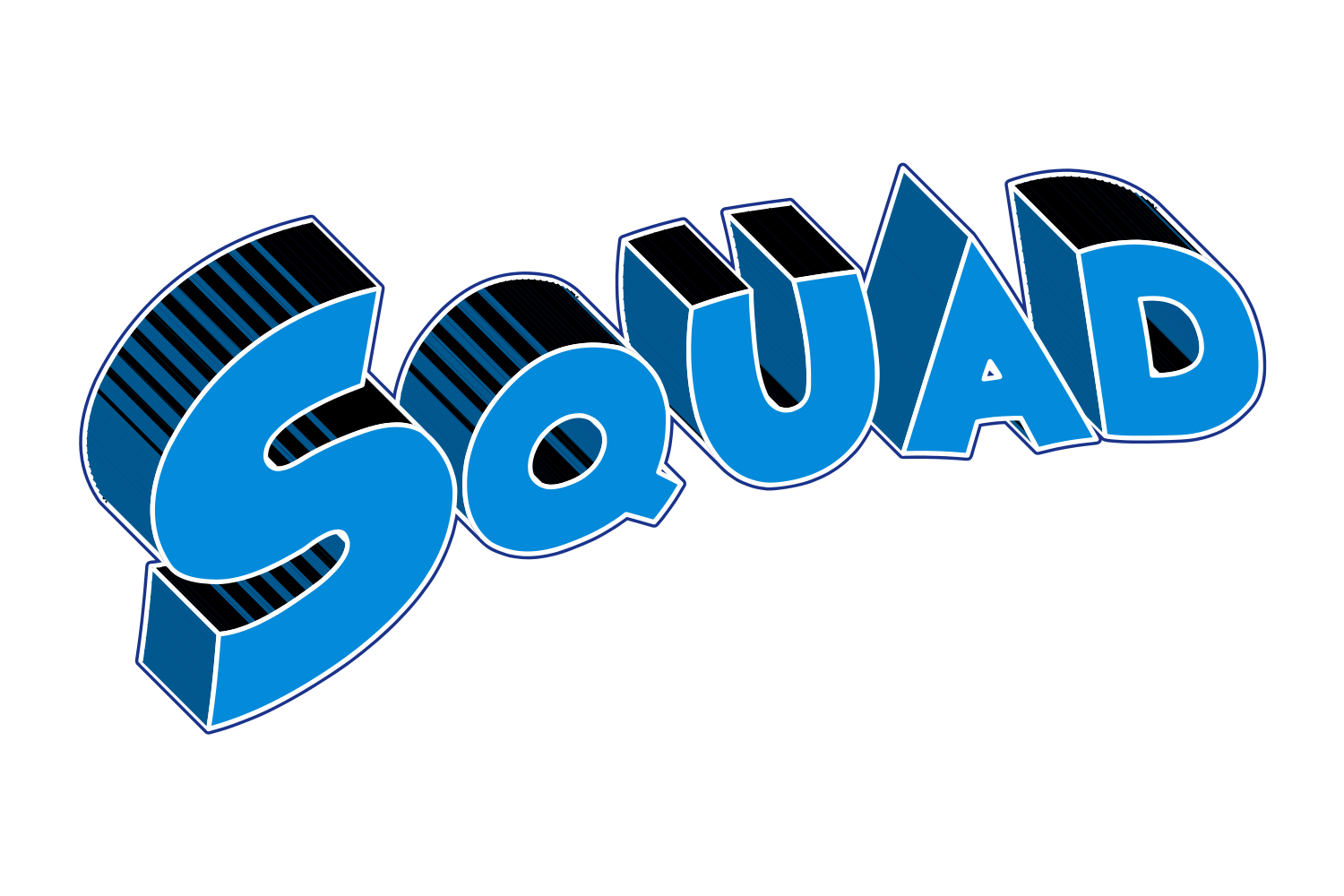
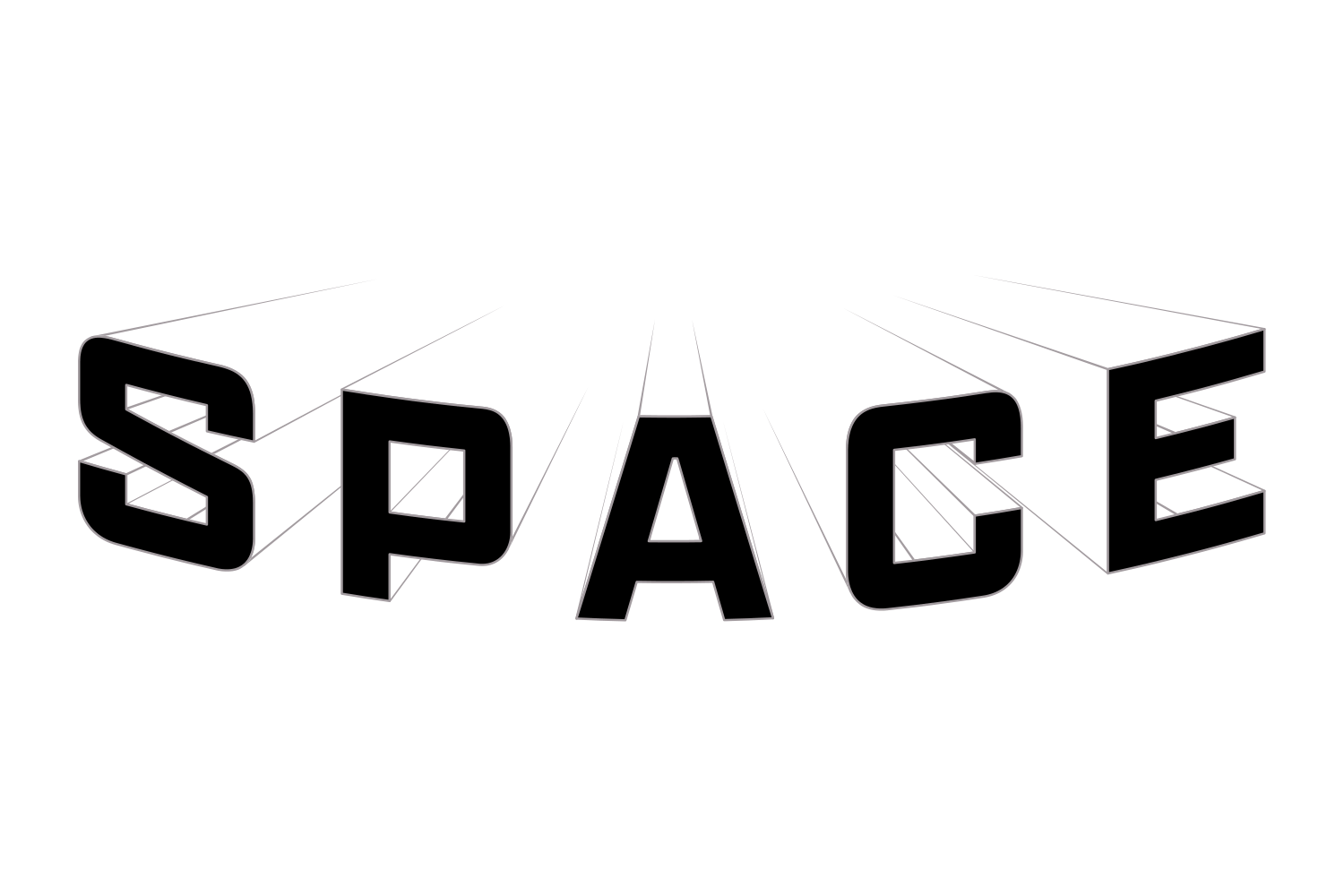
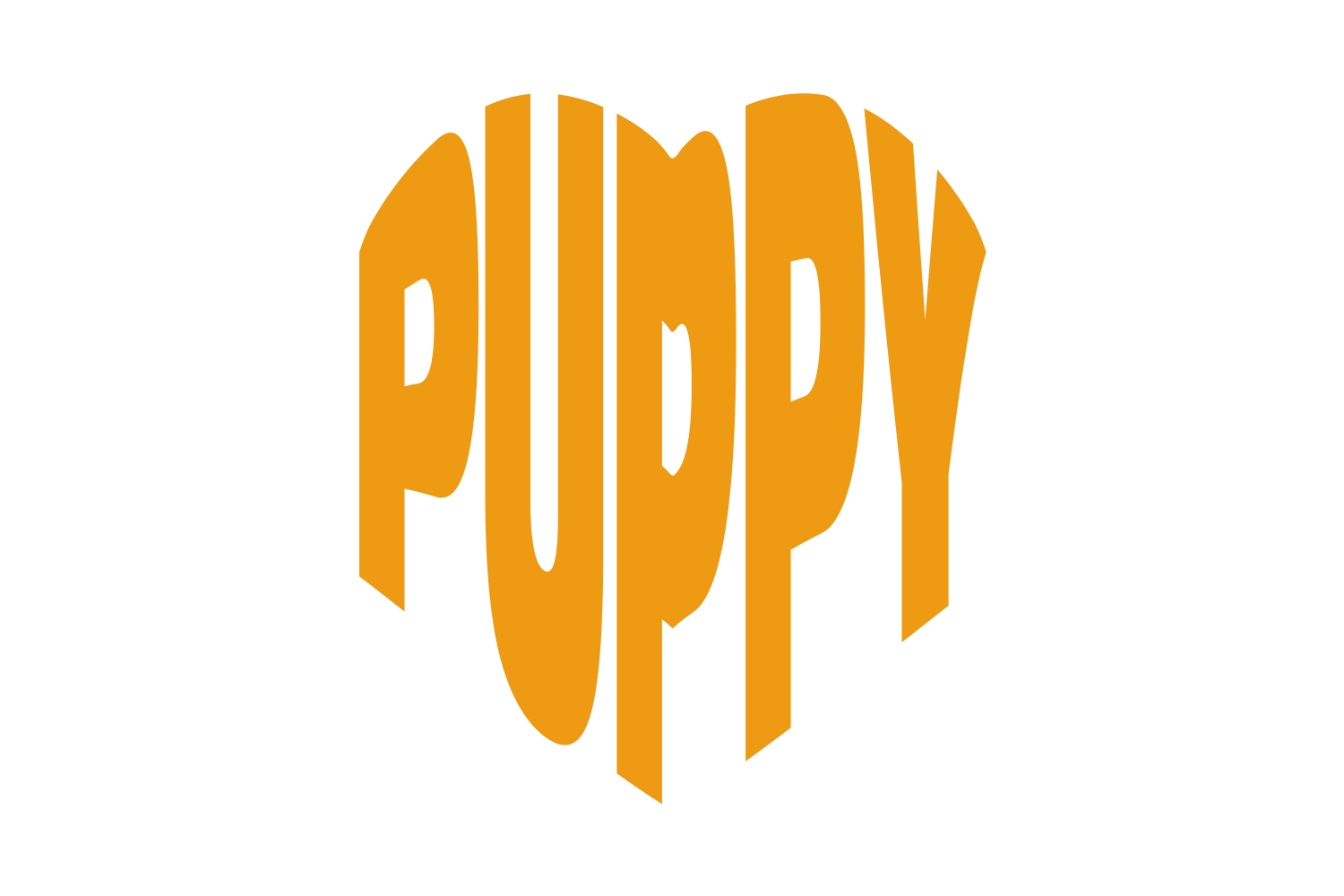
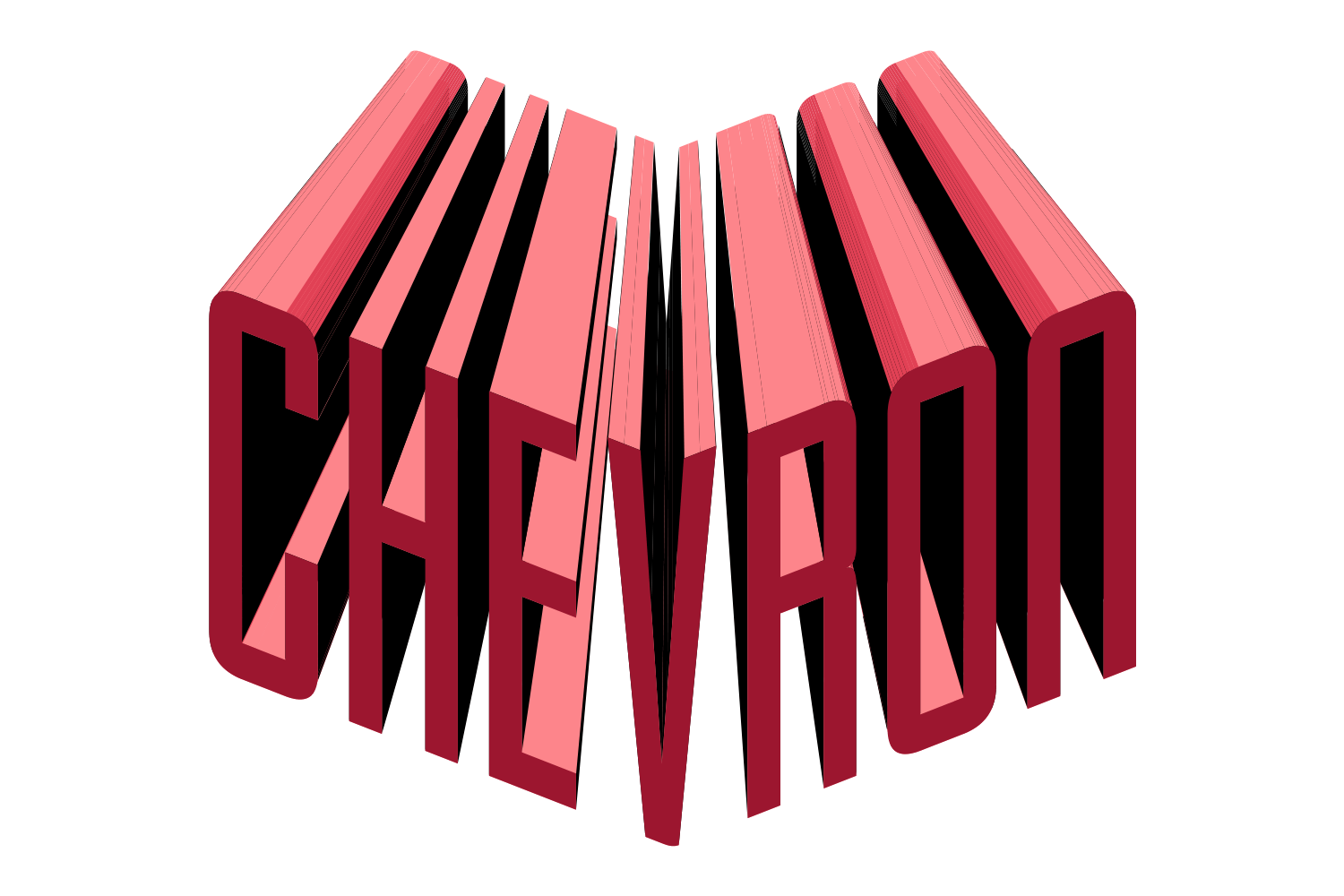
The manual way, in Illustrator
- Select the text and try Effect › Warp: Arc, Arch, Flag, Fish and Rise cover most needs. Tick Preview and adjust Bend.
- For an exact shape: draw it over the text, select both, and choose Object › Envelope Distort › Make with Top Object.
- Edit the words later: for Effect › Warp, retype with the Type tool and reopen the Warp row in the Appearance panel to change the bend; for an envelope, Object › Envelope Distort › Edit Contents changes the words and Edit Envelope adjusts the shape.
- Draw a separate copy of the shape behind as the container, since the envelope shape itself is invisible.
Make with Top Object needs one closed path on top of the text. Effects and graphic styles on the text show only when Distort Appearance is ticked in Envelope Options (the gradient and pattern options sit under it). Make with Top Object can wave the letters on an asymmetric shape: simplify the shape, change the starting layout, or start from Make with Mesh and adjust points. Fidelity only sets how closely the fit follows the shape.
Menu paths checked against Adobe's current Illustrator documentation; hands-on verification and screenshots are still to come.
Shape with JuicyType
Select the text, open the JuicyType panel, choose Shape, and drag. It is a live effect, so the text stays editable and every control can be changed later.
- ShapePennant / Bowtie / Hexagon / Applecore / Football / Oval / Heart / Arch / Chevron / Trapezoid
- Amount−100 to 100%, default 60; the sign mirrors the shape
- Position−10 to 10, Pennant
- Container fillNone / TC1 / TC2 / Black / White / spot
- Offset0–200 pt
- Stroke0–20 pt with colour
- Round corners0–100 pt
- Margins L / R0–200 pt
- Split10–90%, Bowtie, Applecore and Trapezoid, with Split on space if two words
- Fixed width / heighton/off, 5–2000 pt
Common questions
Can I still edit the text once it is shaped?
Yes, with Edit Contents in Illustrator, or directly with JuicyType since the shape is a live effect.