How to make a spray paint text effect in Illustrator
The built-in route is a Scatter Brush or Effect › Distort & Transform › Roughen on an outlined copy, plus hand-drawn drips with the Blob Brush. JuicyType's Drip effect does all of it from one slider, live on the text.
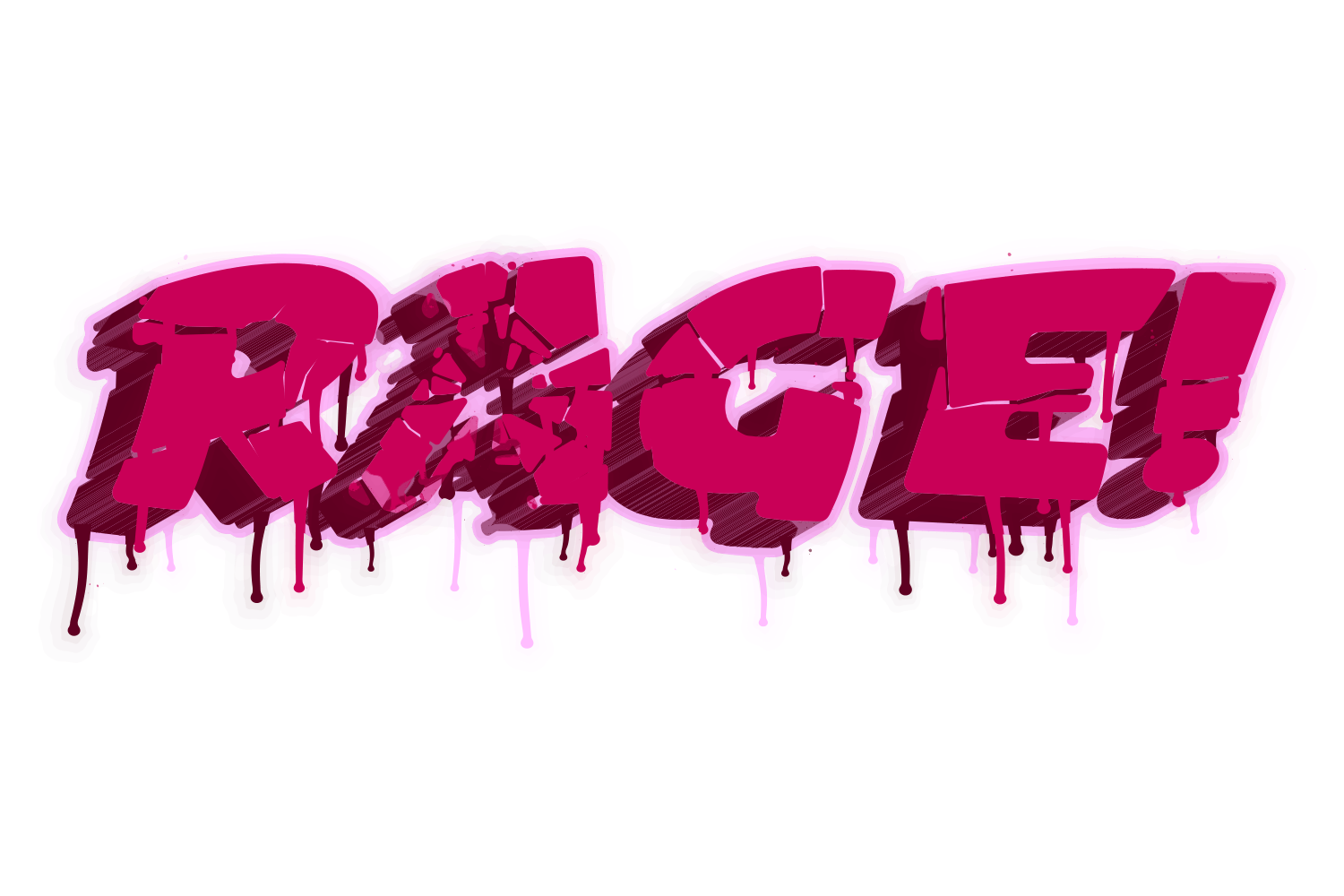
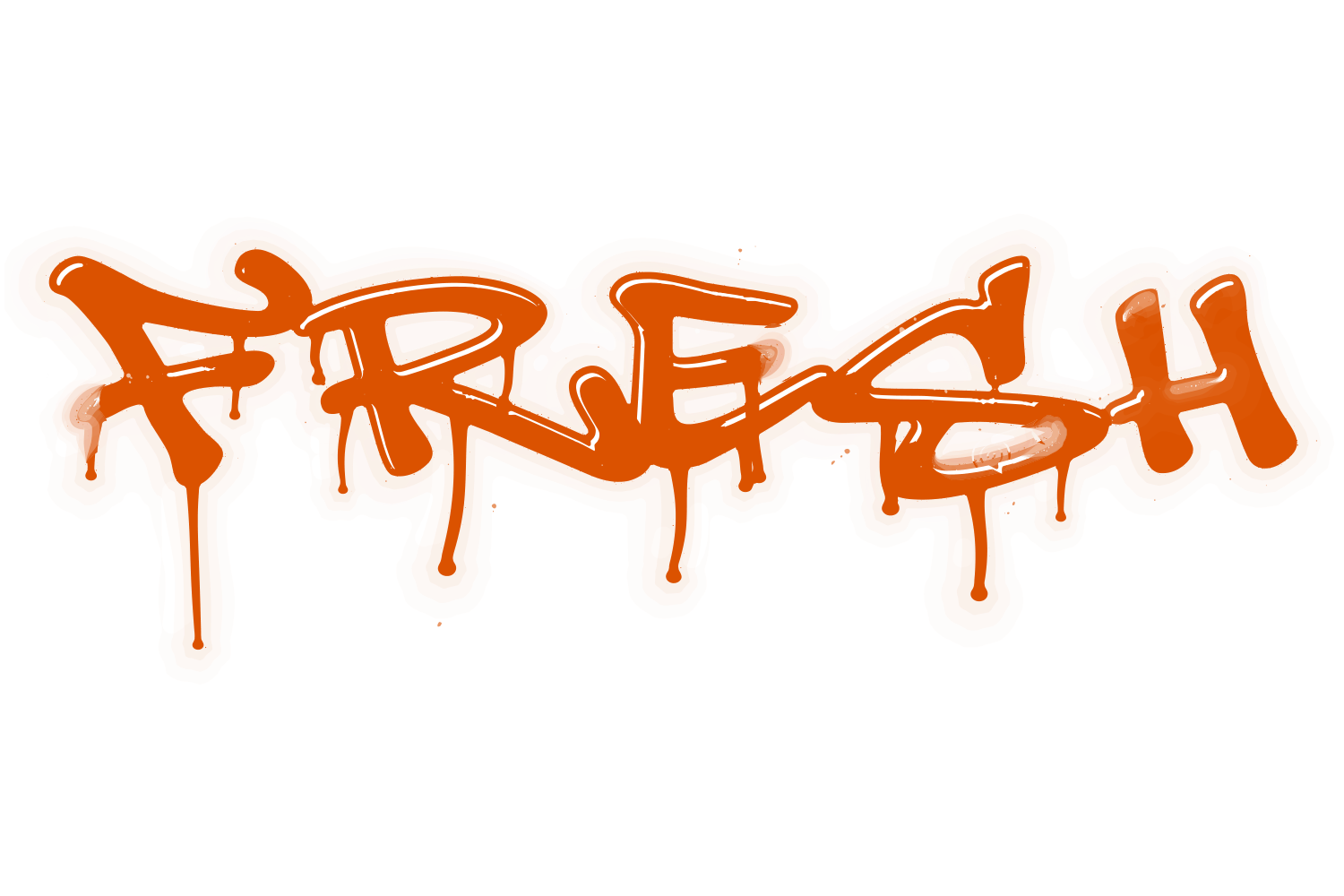
The manual way, in Illustrator
- Outline a copy of the text (Type › Create Outlines) and keep the live text above it.
- Apply Effect › Distort & Transform › Roughen with a small size and high detail for a ragged vector edge (it is jagged, not a soft blur).
- Draw drips from the lower edges with the Blob Brush and unite them with the outline.
- Scatter specks around the letters with a Scatter Brush on a separate path.
Every step works on an outlined copy, so the word is no longer editable once the drips are drawn.
Menu paths checked against Adobe's current Illustrator documentation; hands-on verification and screenshots are still to come.
Drip with JuicyType
Select the text, open the JuicyType panel, choose Drip, and drag. It is a live effect, so the text stays editable and every control can be changed later.
- Neat → Sloppy0–100, default 65: how much overspray, drips and splatter
- Size0–100, default 50: the physical scale of the drips and specks
- Respraya new seed, another spray of the same settings
Common questions
Are the drips random?
Seeded. The same settings reproduce the same spray on any machine; Respray gives you a new one.
Does it work with 3D and the other effects?
Yes. Drip runs after the other effects, so walls, cracks and stickers get sprayed too.