How to outline text in Illustrator
Add a stroke in the Appearance panel (Window › Appearance › Add New Stroke) and drag it below the fill so it grows outward. Add more strokes for concentric bands. JuicyType's Strokes effect builds up to five rounded bands from one panel, including transparent knockout bands.


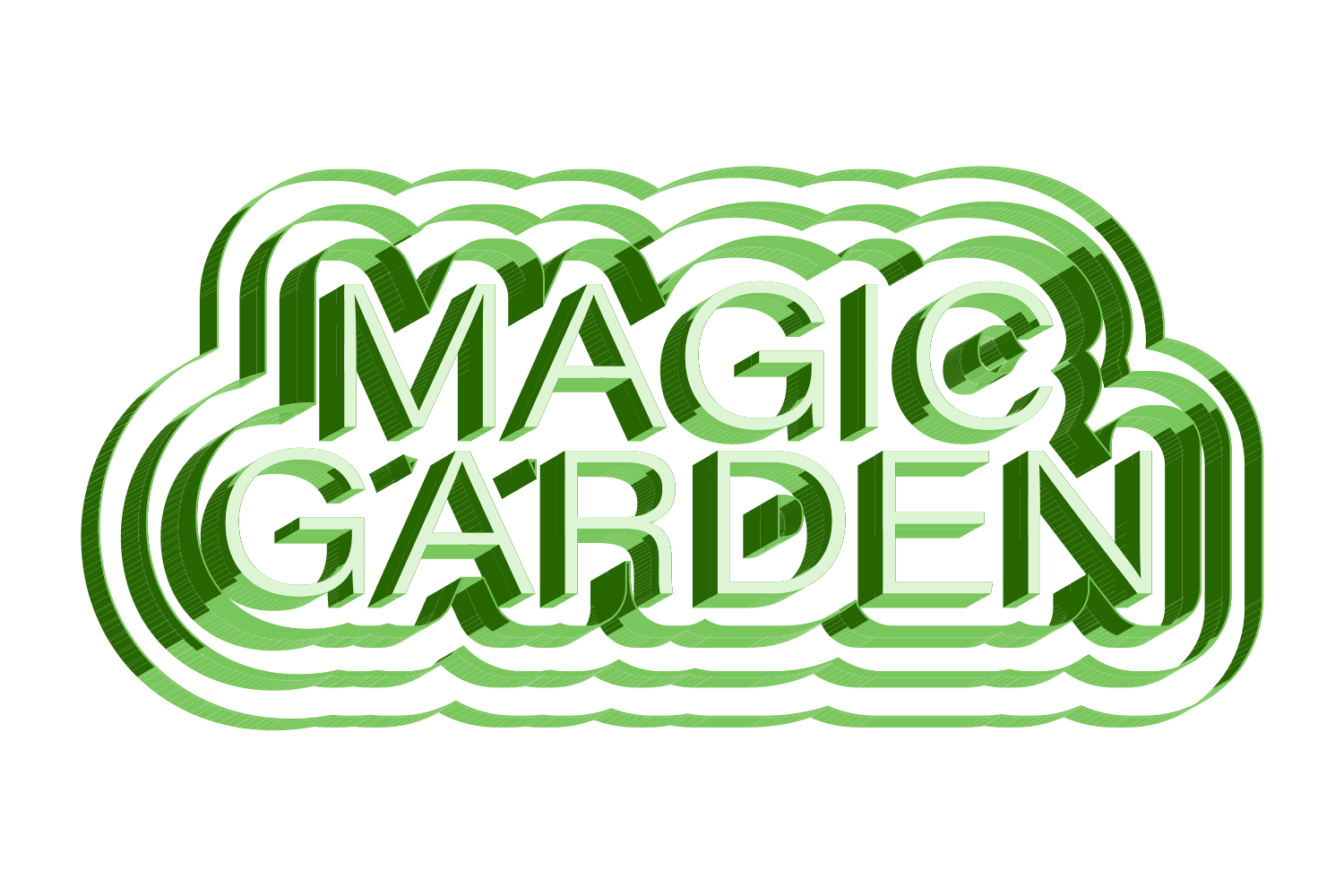


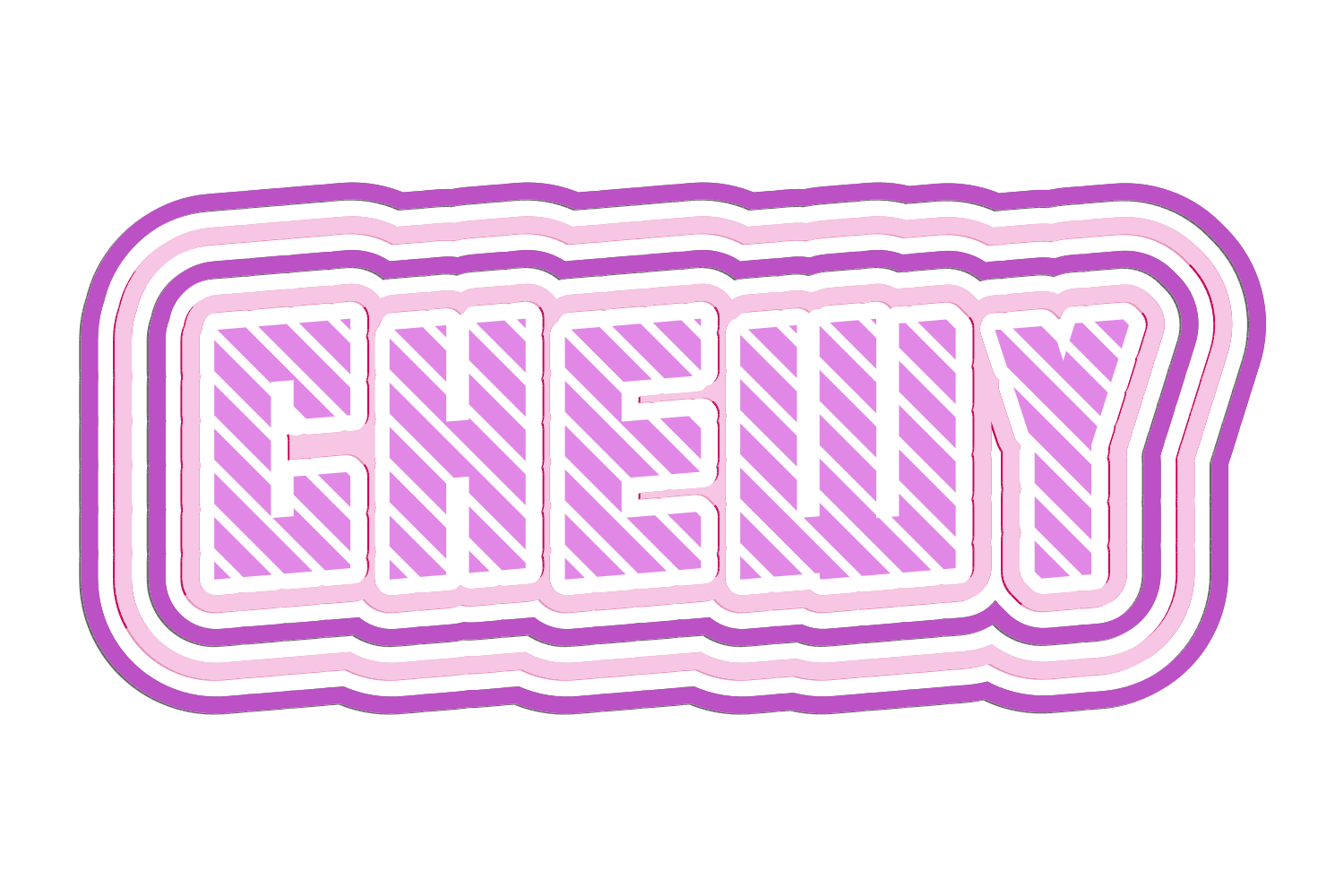
The manual way, in Illustrator
- Select the text. Open Window › Appearance.
- Click Add New Stroke, set a weight and colour, and drag the stroke below the Characters row so it grows out from behind the letters. Live type cannot align a stroke to the outside, so a stroke below at double the weight is the standard workaround.
- Repeat for each band, making each lower stroke wider than the one above. For a gap between bands on a flat background, add a fill in the background colour between them and give it Effect › Path › Offset Path; a truly transparent gap needs a knockout, which live type cannot do on its own.
- Set Round Join in the Stroke panel, or lower the Miter Limit, so corners don't spike.
Stroke order in the Appearance panel is what makes bands look right; a stroke above the Characters row eats into the letter. Align Stroke to Outside is greyed out on live type by design.
Menu paths checked against Adobe's current Illustrator documentation; hands-on verification and screenshots are still to come.
Strokes with JuicyType
Select the text, open the JuicyType panel, choose Strokes, and drag. It is a live effect, so the text stays editable and every control can be changed later.
- Stroke rowsup to 5, each a width 0–30 pt (0.01 steps) and a colour: None, TC1, TC2, Black, White or a document spot
- Row modeNo Effect / Raise / Feather
- Raise depth0–300 pt, with top, side and slope pane colours
- Featheramount 0–99 pt, Spread 0–99, Shift 0–99, Angle 0–360° (default 135°)
- Position0–100%
- Rounded0–100% corner rounding
Common questions
Does outlining text convert it to shapes?
Not this way. Appearance strokes keep the type live. Type › Create Outlines is the destructive version.
Why is Align Stroke to Outside greyed out?
Live type only carries a basic appearance, so stroke alignment is disabled. Put the stroke below Characters at twice the weight, or add a fill with Effect › Path › Offset Path.
How do I knock out the letter so only the bands show?
Set the fill to None for a stroke-only look. Centred strokes still cover part of the letter interior, so it is not an empty silhouette. In JuicyType, colour a stroke row None for a truly transparent band.