How to warp text in Illustrator
Use Effect › Warp for the fifteen preset shapes (Arc, Flag, Fish, Bulge…), or Object › Envelope Distort › Make with Mesh to push the letters into any shape by hand. Both keep the text editable.
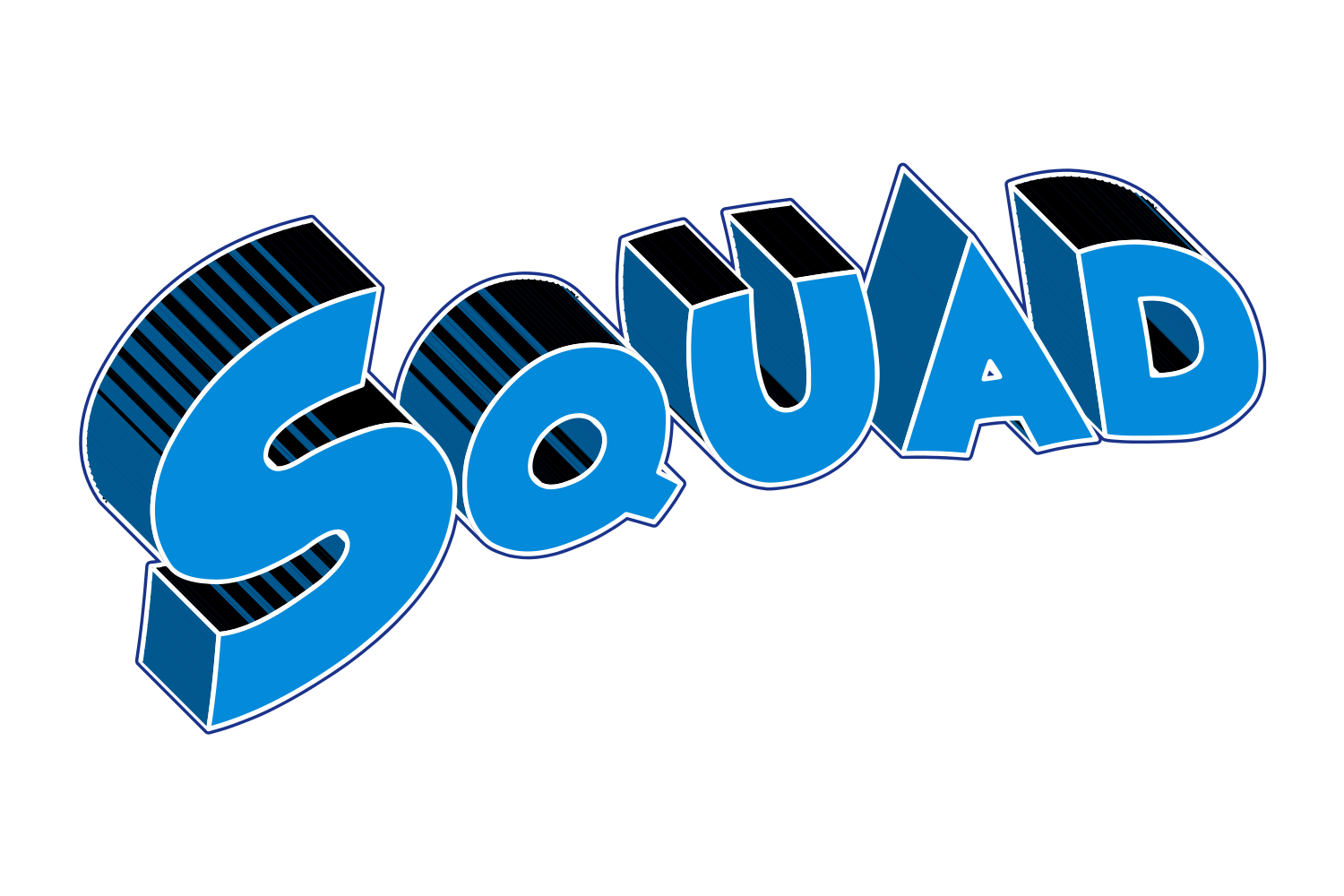
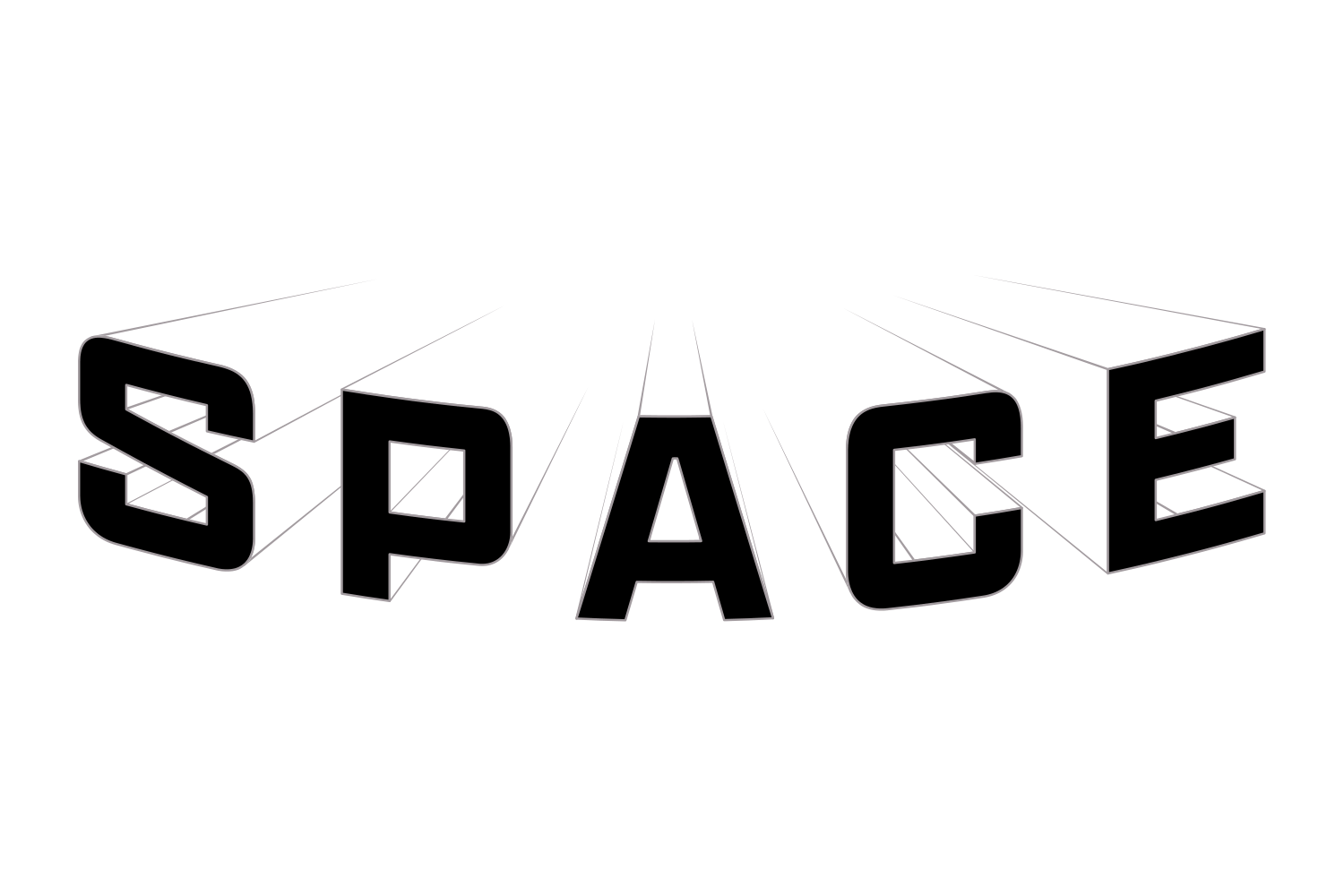
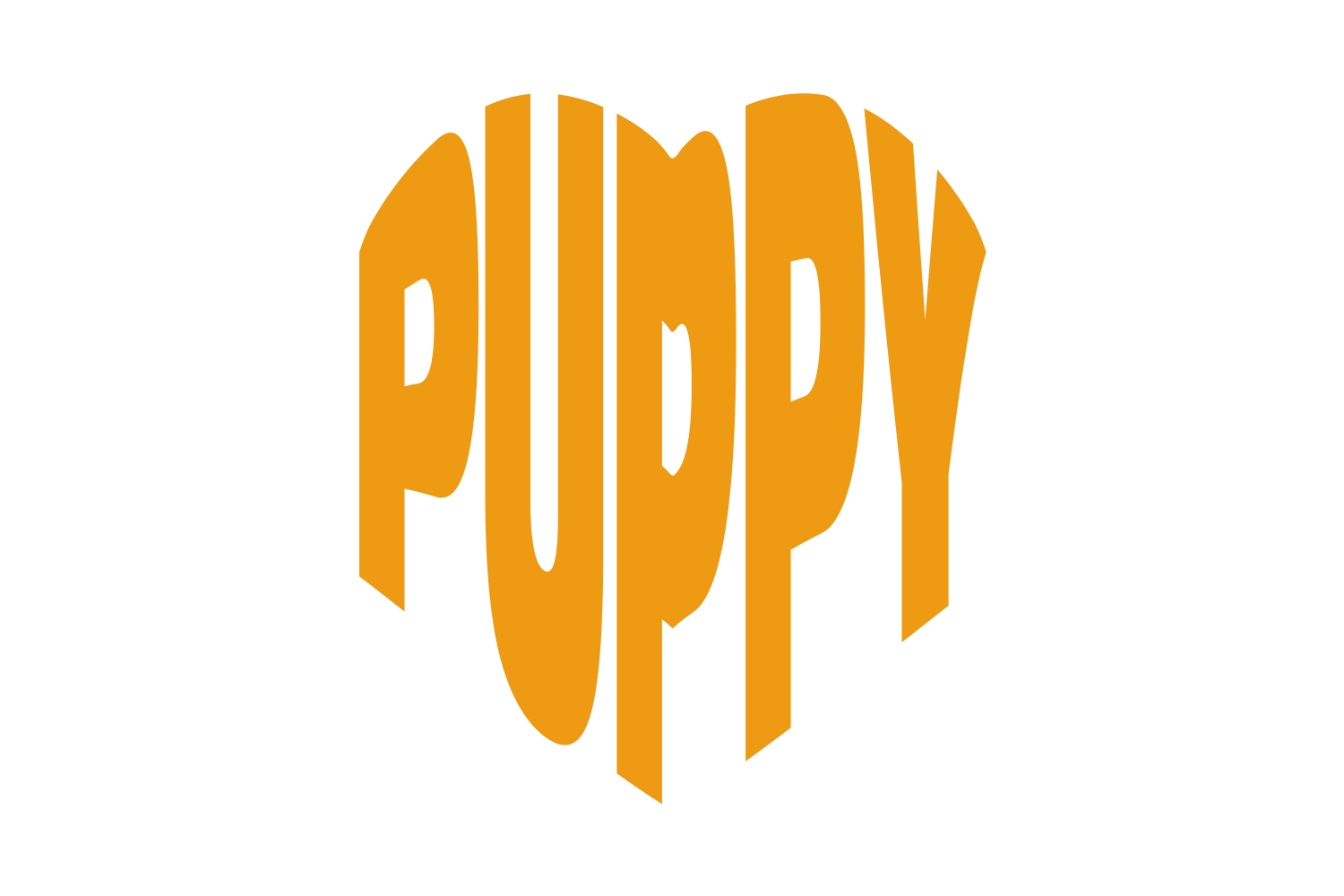
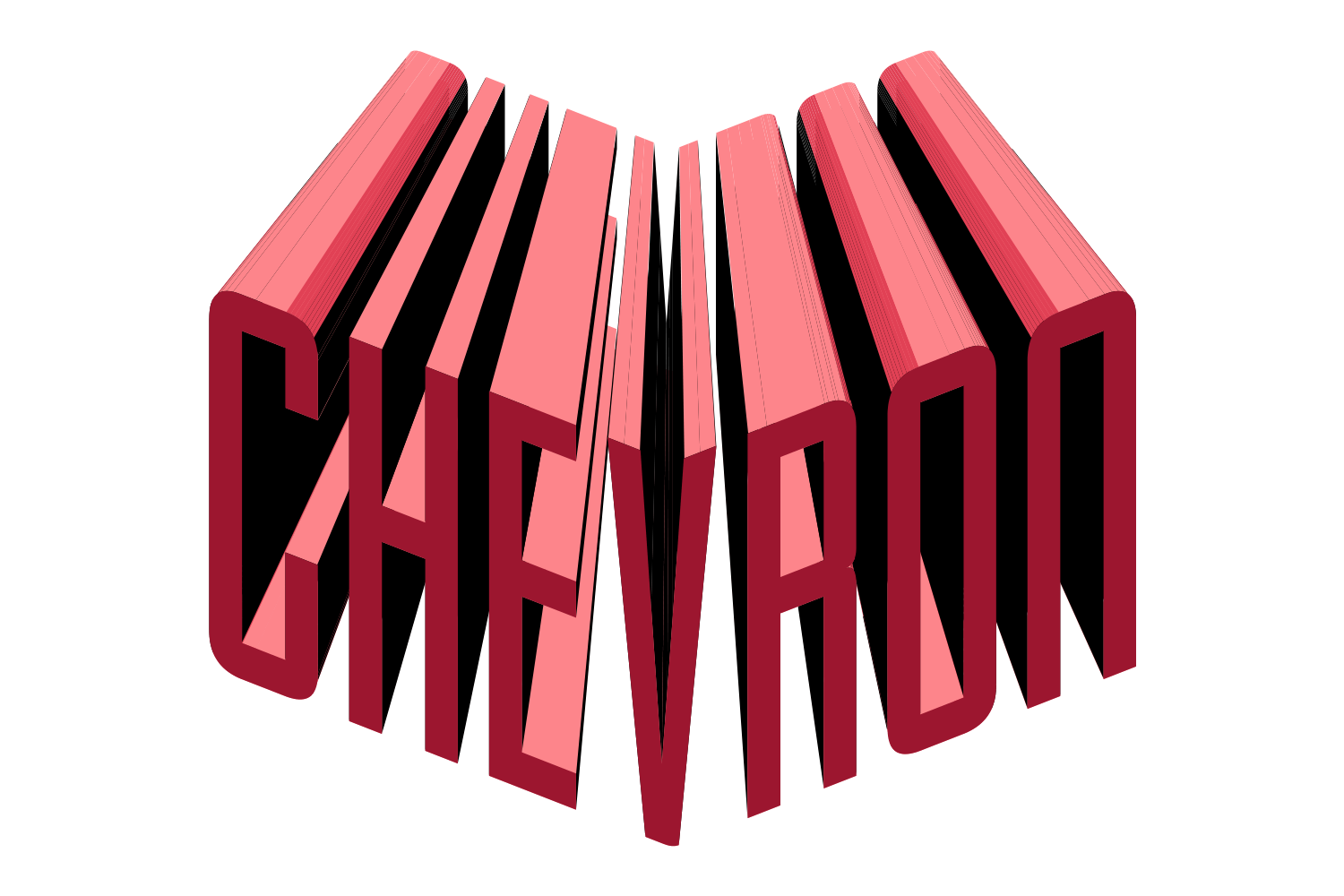
The manual way, in Illustrator
- Select the text. Go to Effect › Warp and pick a style; tick Preview and set Bend and Distortion.
- For a custom shape: draw the shape on top of the text, select both, and choose Object › Envelope Distort › Make with Top Object.
- For freehand: Object › Envelope Distort › Make with Mesh, set rows and columns, and drag mesh points with the Direct Selection tool.
- Edit the words: for Effect › Warp, retype with the Type tool and reopen the Warp row in the Appearance panel to change the bend. For an envelope, Object › Envelope Distort › Edit Contents changes the words and Edit Envelope adjusts the shape.
Basic fills come through an envelope. Effects and graphic styles on the text need Distort Appearance in Envelope Options, which also unlocks separate options for linear gradients and patterns; or style the envelope object itself.
Menu paths checked against Adobe's current Illustrator documentation; hands-on verification and screenshots are still to come.
3 effects in JuicyType
Shape covers the standard warps as a popup; for a shape you draw yourself, use Illustrator's Envelope first, then add JuicyType effects.
Common questions
Warp or Envelope Distort: which one?
Warp for presets you can dial in; Envelope for a shape you draw. Both are live.
Why does my gradient disappear when I warp?
In an envelope, open Envelope Options, tick Distort Appearance, then Distort Linear Gradients. Effect › Warp keeps the gradient without any settings.