How to curve text in Illustrator
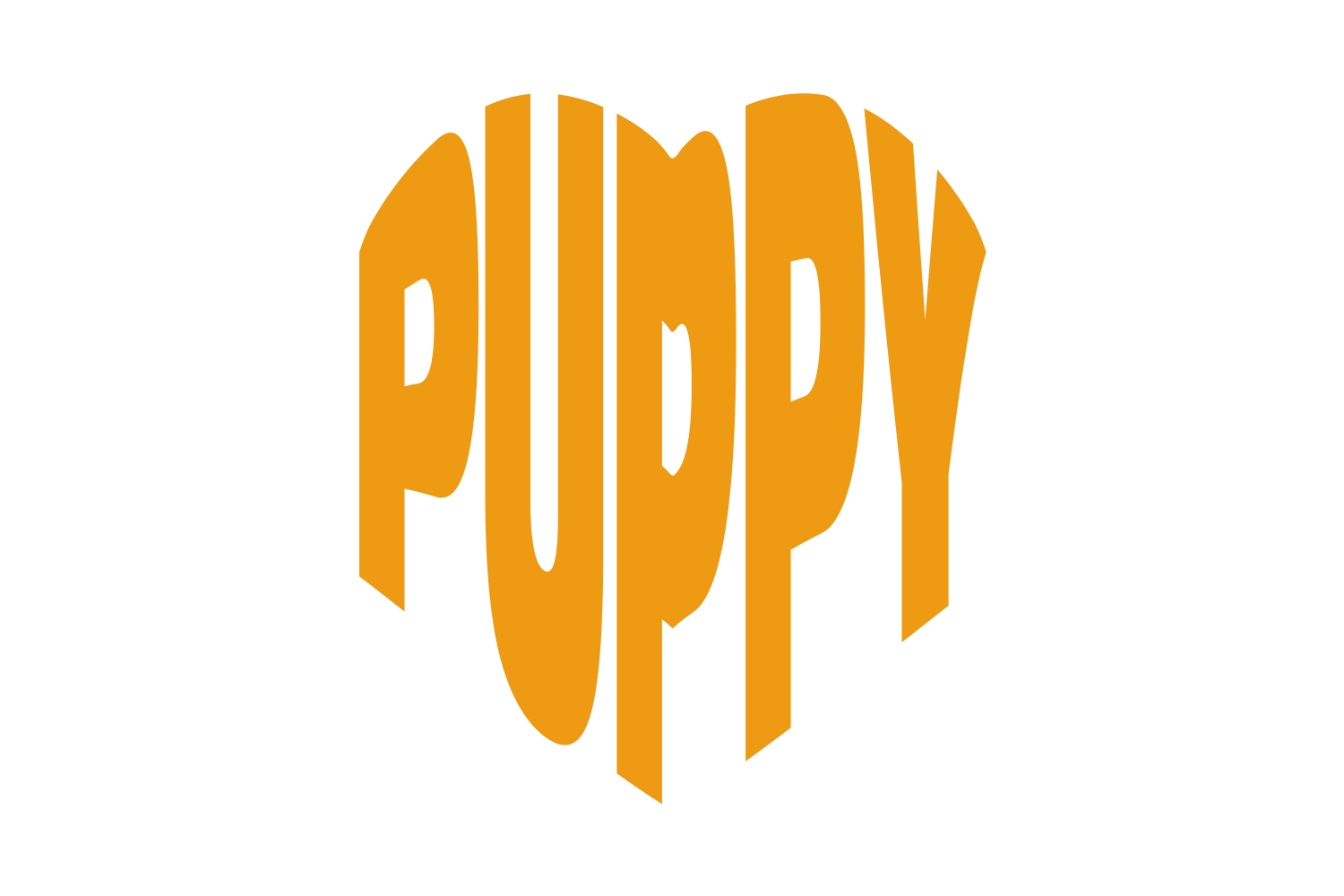
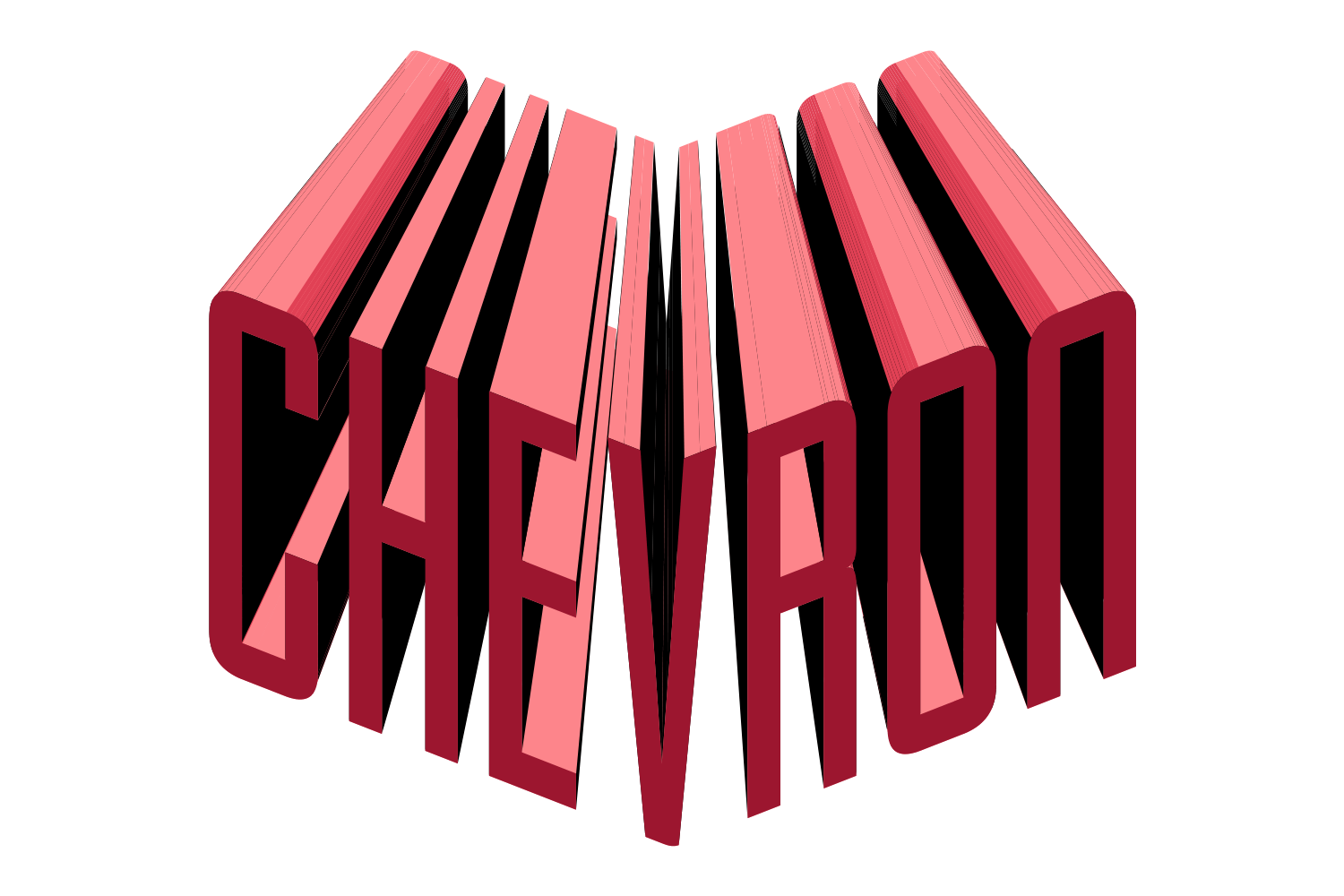
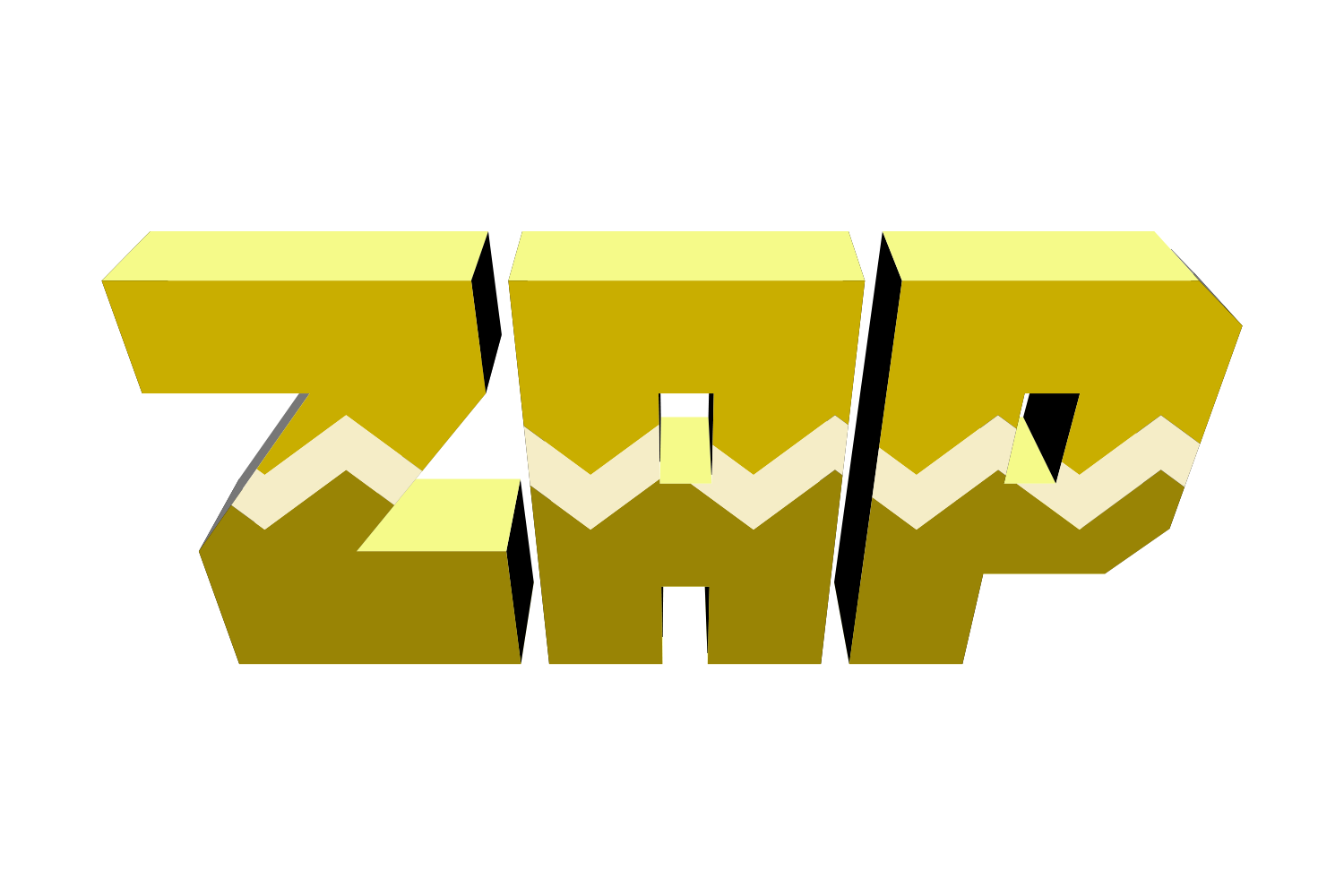
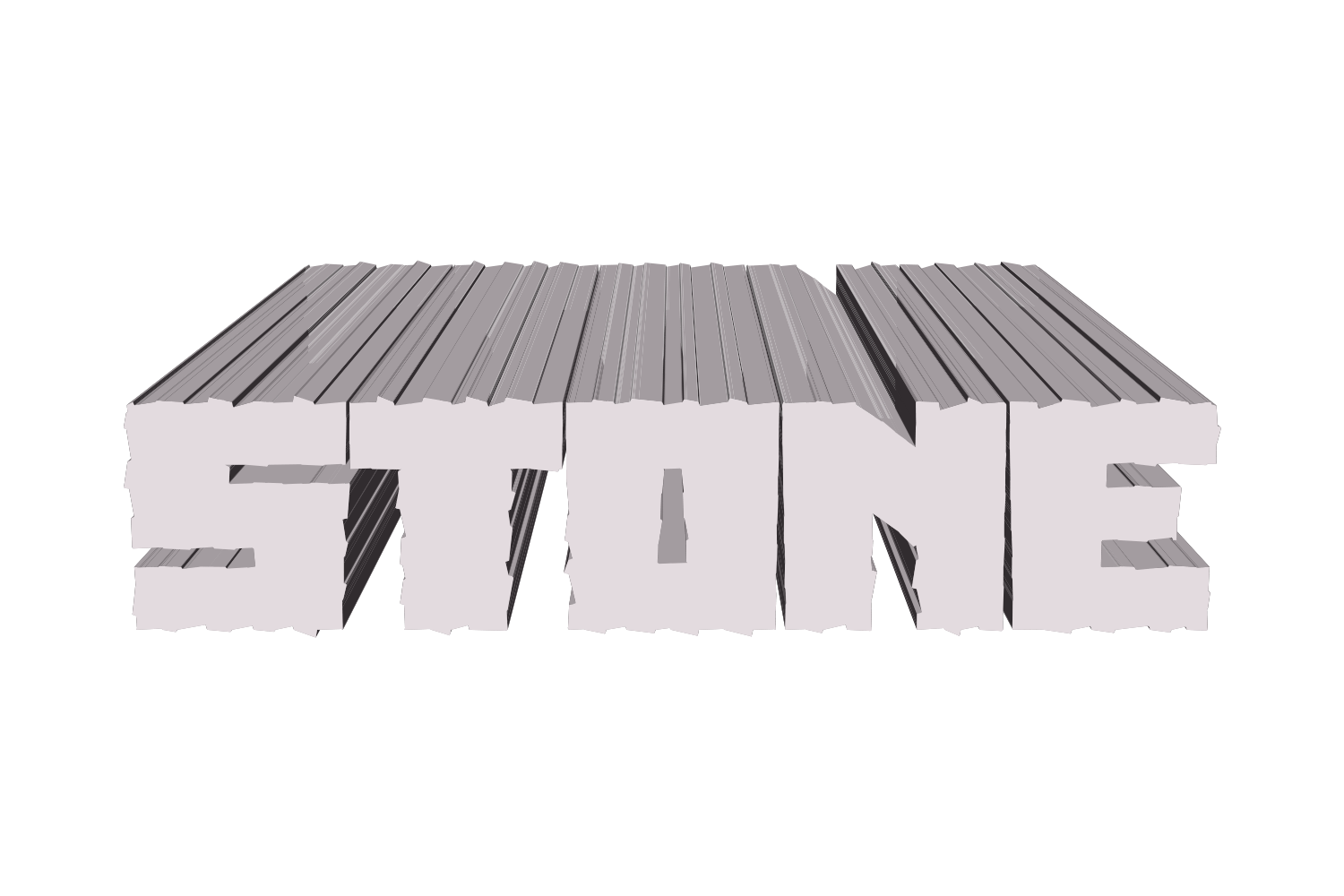
Three ways, all editable: Effect › Warp › Arc for a quick arc on any text, Type on a Path when the text should follow a circle or a line you drew, and Envelope Distort when you want to push individual letters around. In JuicyType, the Shape effect with Arch curves the word in one step, and 3D, Strokes and Shadow stack on top.
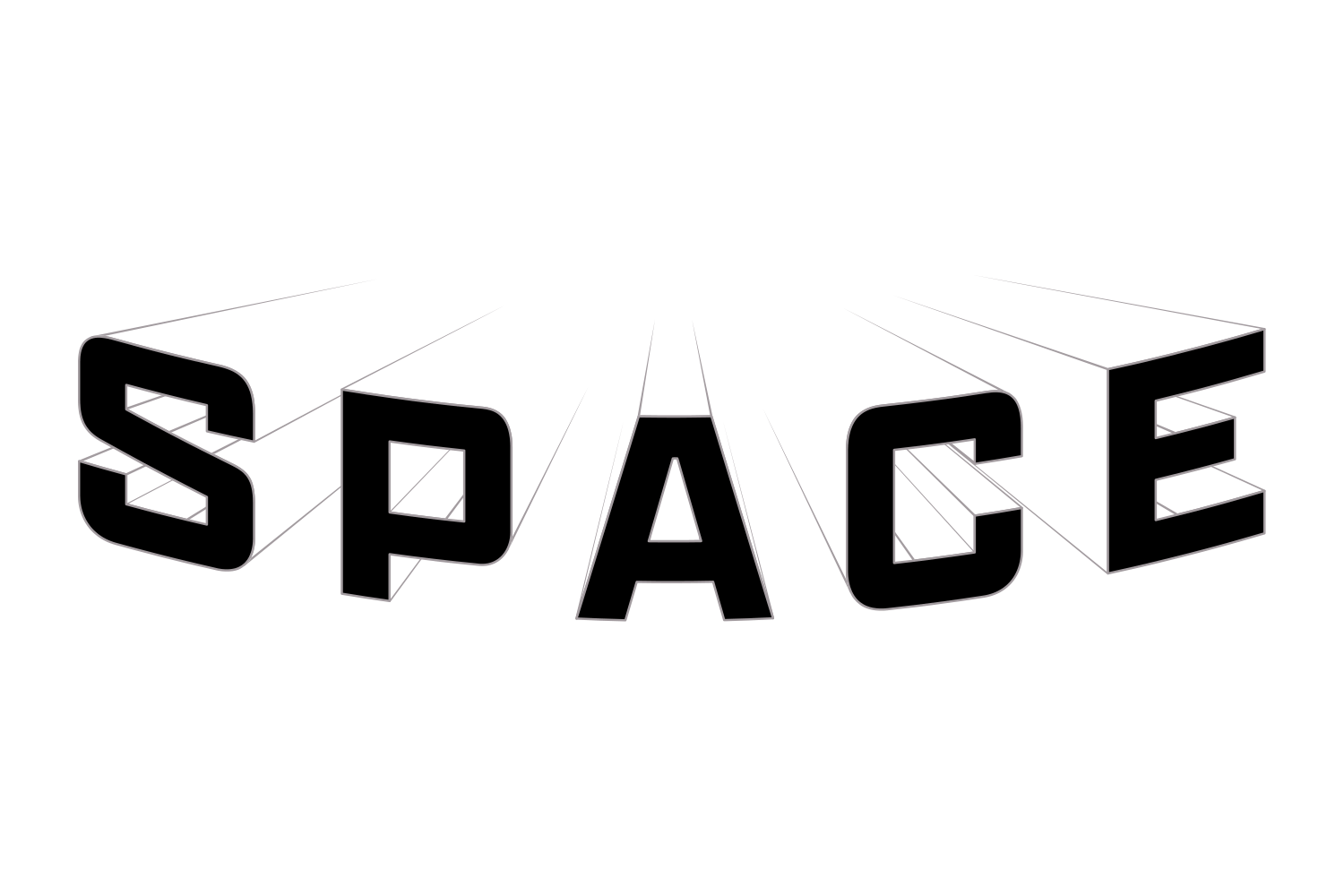
Stand-in renders. Illustrator exports go at /img/guides/curve-text/stage-1.png, stage-2.png, stage-3.png.
Which method?
- A quick arc or banner shape on a headlineWarp › Arc →
- Text around a circle, badge or logoType on a Path →
- Text along a line you drew yourselfType on a Path →
- Pull or bend individual letters by handEnvelope Distort →
- Curve it and add depth, outlines or a shadowJuicyType Shape › Arch →
Method 1: Warp › Arc
The fastest arc. One dialog, two sliders, stays live.
- Select the text object with the Selection tool (V). Don't outline it.
- Choose Effect › Warp › Arc… and tick Preview.
- Drag Bend. Positive values arc upward, negative values arc downward. Keep Horizontal selected for a normal arc.
- Leave Distortion at 0 unless you want one end larger than the other, then click OK.
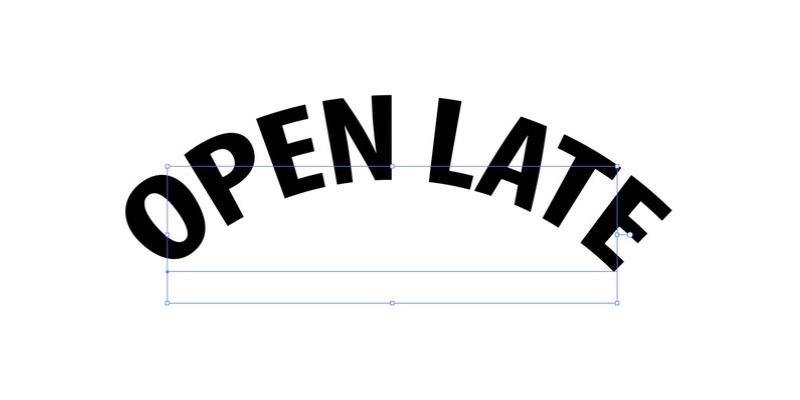
Editing it afterwards
- Retype the text at any time; the arc follows.
- To change the bend, select the object and click Warp: Arc in the Appearance panel (Window › Appearance) to reopen the dialog.
- To remove it, drag that row to the panel's bin.
Method 2: Type on a Path
For circles, badges and any line you draw. The letters keep their shape and only the baseline bends.
- Draw the path: an ellipse (L) for a circle, or any Pen stroke.
- Hold on the Type tool and choose Type on a Path, then click the path. The path loses its stroke; that's expected.
- Type. Drag the small centre bracket along the path to slide the text.
- Drag the centre bracket across the path to flip the text to the other side. Hold ⌘ (Ctrl on Windows) while dragging to slide it without flipping.
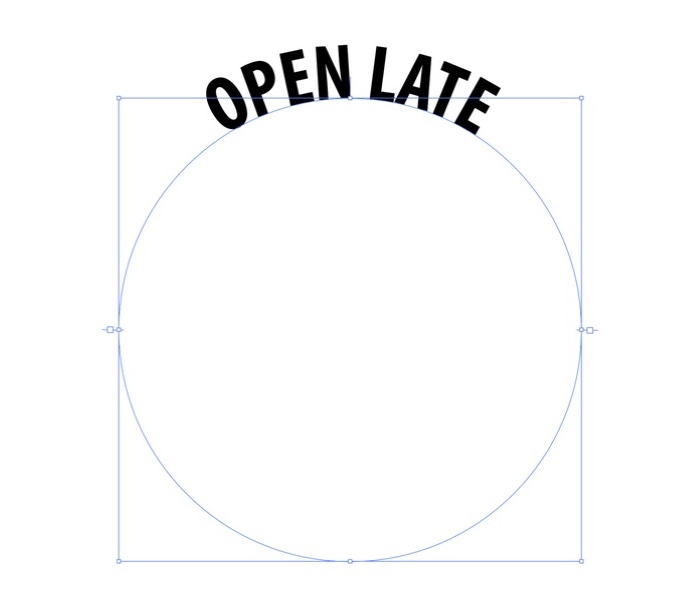
Editing it afterwards
- Edit the text with the Type tool as normal. Use Baseline Shift in the Character panel to push the text off the line without flipping it.
- Reshape the path with the Direct Selection tool (A); the text reflows along it.
- Type › Type on a Path › Type on a Path Options… sets the effect (Rainbow, Skew, 3D Ribbon…), alignment to path, and spacing on tight curves.
Method 3: Envelope Distort
When Arc isn't quite right and you want to reshape the letters freely.
- Select the text and choose Object › Envelope Distort › Make with Warp…, pick Arc and set Bend for a starting shape. Or choose Make with Mesh… for a grid you can pull.
- Switch to the Direct Selection tool (A) and drag envelope points or handles to reshape.
- For a shape you've drawn, place it over the text, select both, and choose Make with Top Object.
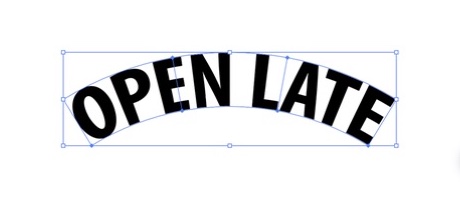
Editing it afterwards
- To change the words, choose Object › Envelope Distort › Edit Contents, edit, then Edit Envelope to return.
- Basic fills come through the envelope. If an effect or graphic style on the text does not, tick Distort Appearance in Object › Envelope Distort › Envelope Options…; the gradient and pattern options there only enable once it is on.
- Object › Envelope Distort › Release gives you the text and the envelope shape back.
Troubleshooting
The text is upside down on the path
Drag the centre bracket across the path to flip it, or open Type on a Path Options and tick Flip.
Letters look squashed or stretched
Warp's Bend compresses the inner edge of the arc as it rises. Lower Bend, or move to Type on a Path on a larger circle, which bends only the baseline.
Spacing looks uneven on a tight curve
Open Type on a Path Options and adjust Spacing with Preview on: higher values remove the extra space that opens up between characters on sharp bends. Or use a wider path. Tracking in the Character panel is a separate control.
My effect or gradient disappeared after Envelope Distort
Select the envelope and open Object › Envelope Distort › Envelope Options. Tick Distort Appearance for applied effects and graphic styles, then the gradient or pattern option you need (they only enable once Distort Appearance is on). Use Edit Contents to check the original artwork, or style the envelope object itself.
I can't select the text to edit it
It's inside an envelope. Use Object › Envelope Distort › Edit Contents, then Edit Envelope to come back.
I need to change the bend later
Warp: reopen it from the Appearance panel. Path: reshape the path. Envelope: drag the mesh points.
The printer wants outlines
Type › Create Outlines converts text to shapes; Undo restores it only while the step is in history, so keep a live copy. Object › Expand Appearance does the same for the effect on the object.
Curve it in JuicyType, then keep going
JuicyType's Shape effect has an Arch option that curves the word directly, with Amount setting how much and its sign flipping arch to sag. It stacks with 3D, Strokes and Shadow, and the text stays editable throughout. If you'd rather curve with Illustrator's own tools first, the same effects apply on top of any of the three methods above.
Common questions
Can I curve text without outlining it?
Yes. All three Illustrator methods and JuicyType's Shape effect keep the text live. Type › Create Outlines, Object › Expand Appearance and expanding an envelope convert it to shapes, so keep a live original before any of those.
Which method keeps the letters undistorted?
Type on a Path with its default Rainbow effect: it positions the letters along the path without reshaping them. Its other effects, such as Skew, do distort them, and so do Warp and Envelope.
Does curved text work with JuicyType's other effects?
Yes. 3D, Strokes, Shadow and the rest are live effects on the same object, so they follow the curve and update when you change the bend or the words.
Menu paths checked against Adobe's current Illustrator documentation. Hands-on verification in Illustrator 2025 and 2026, screenshots and a downloadable example file are still to come; nothing on this page is presented as tested until then.