Screen recording of the Pattern Slice sliders in Illustrator (placeholder)
How it works
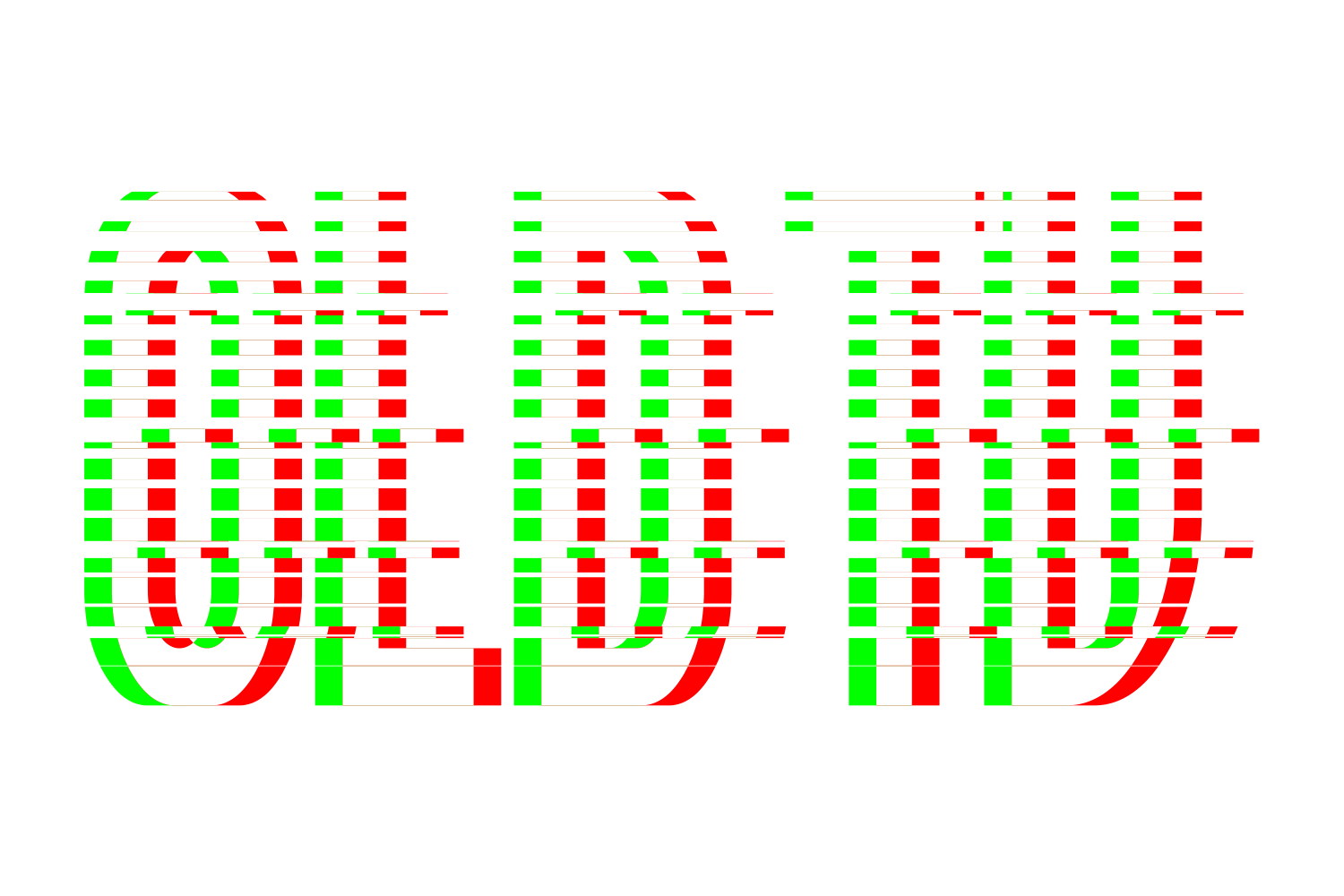
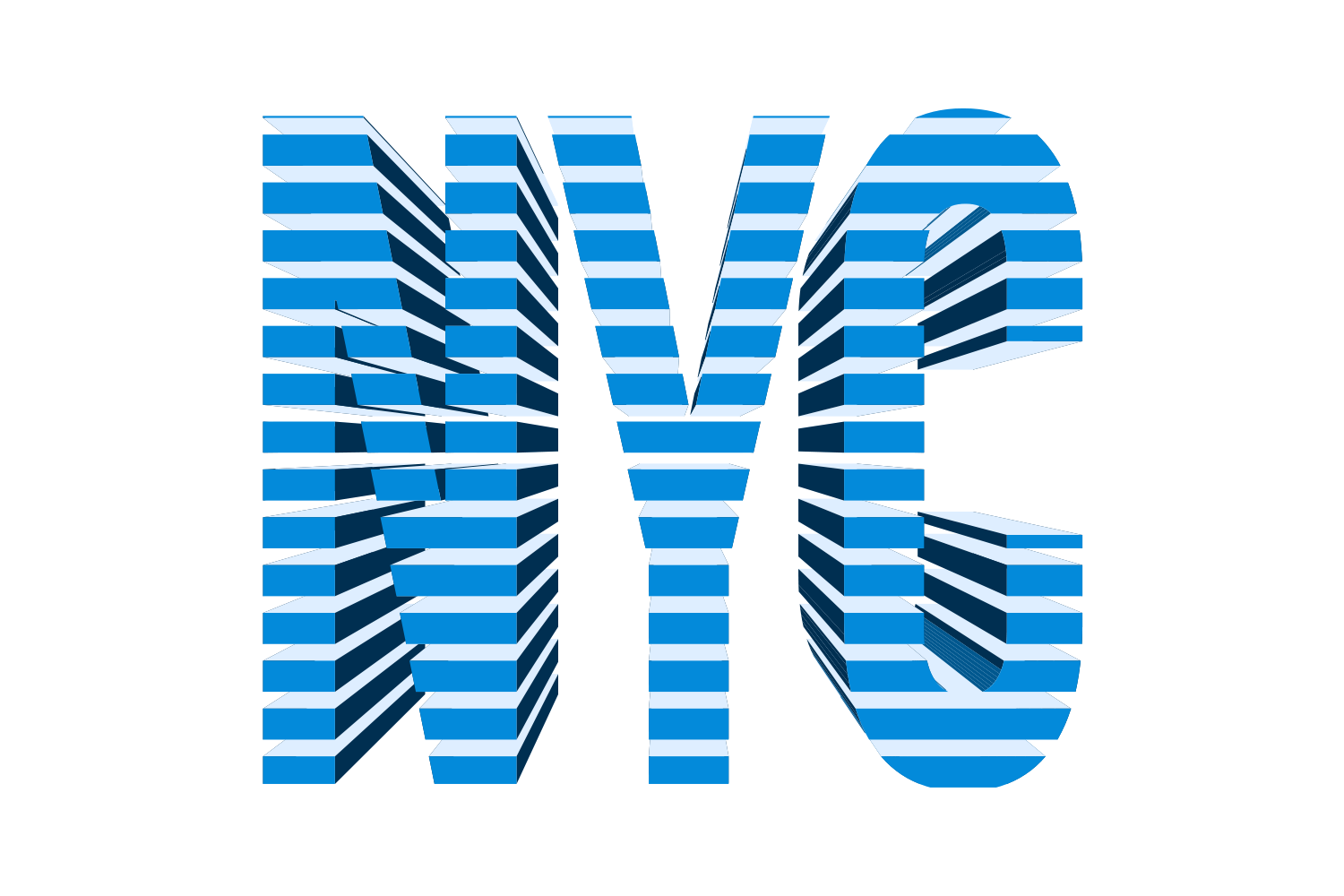
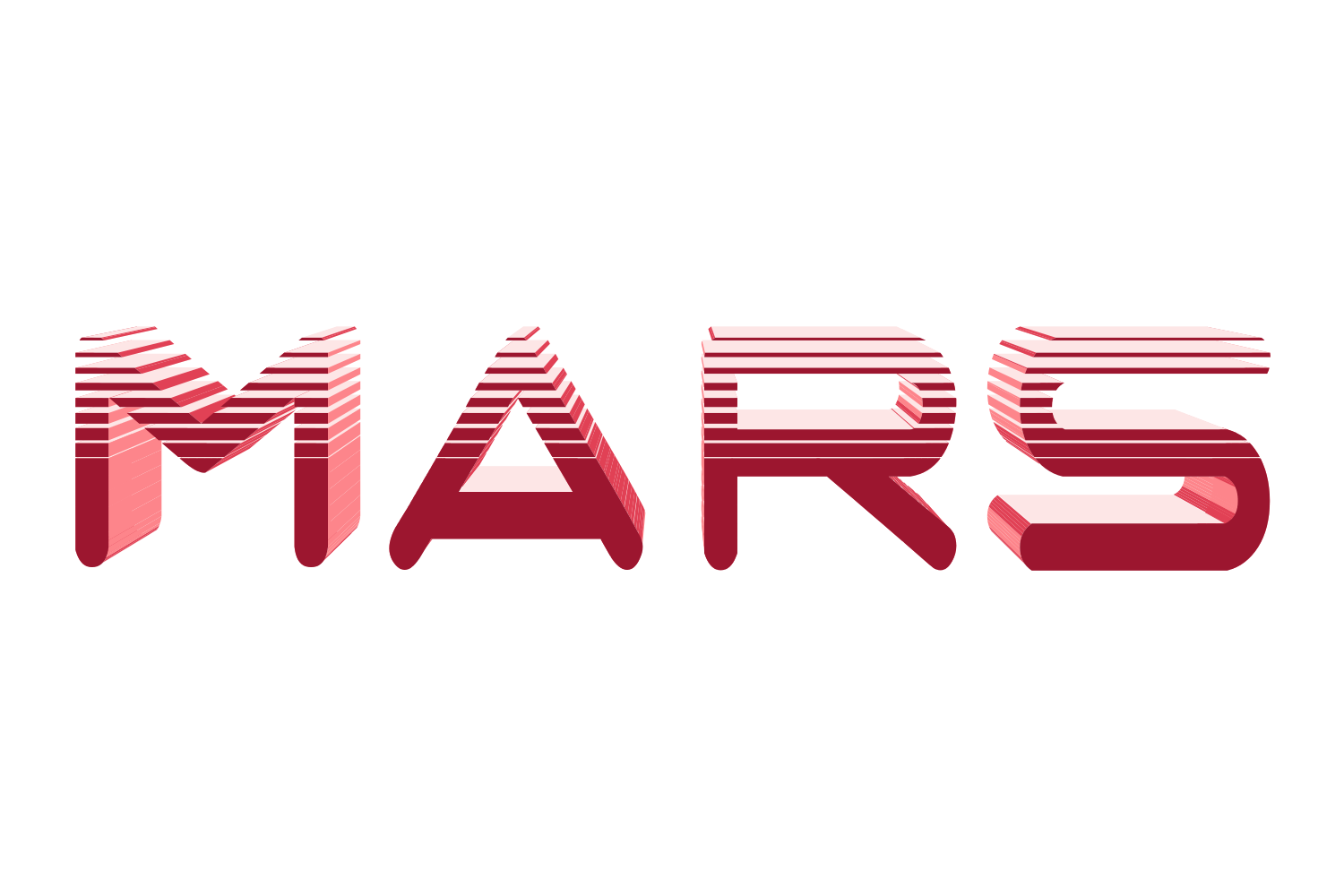
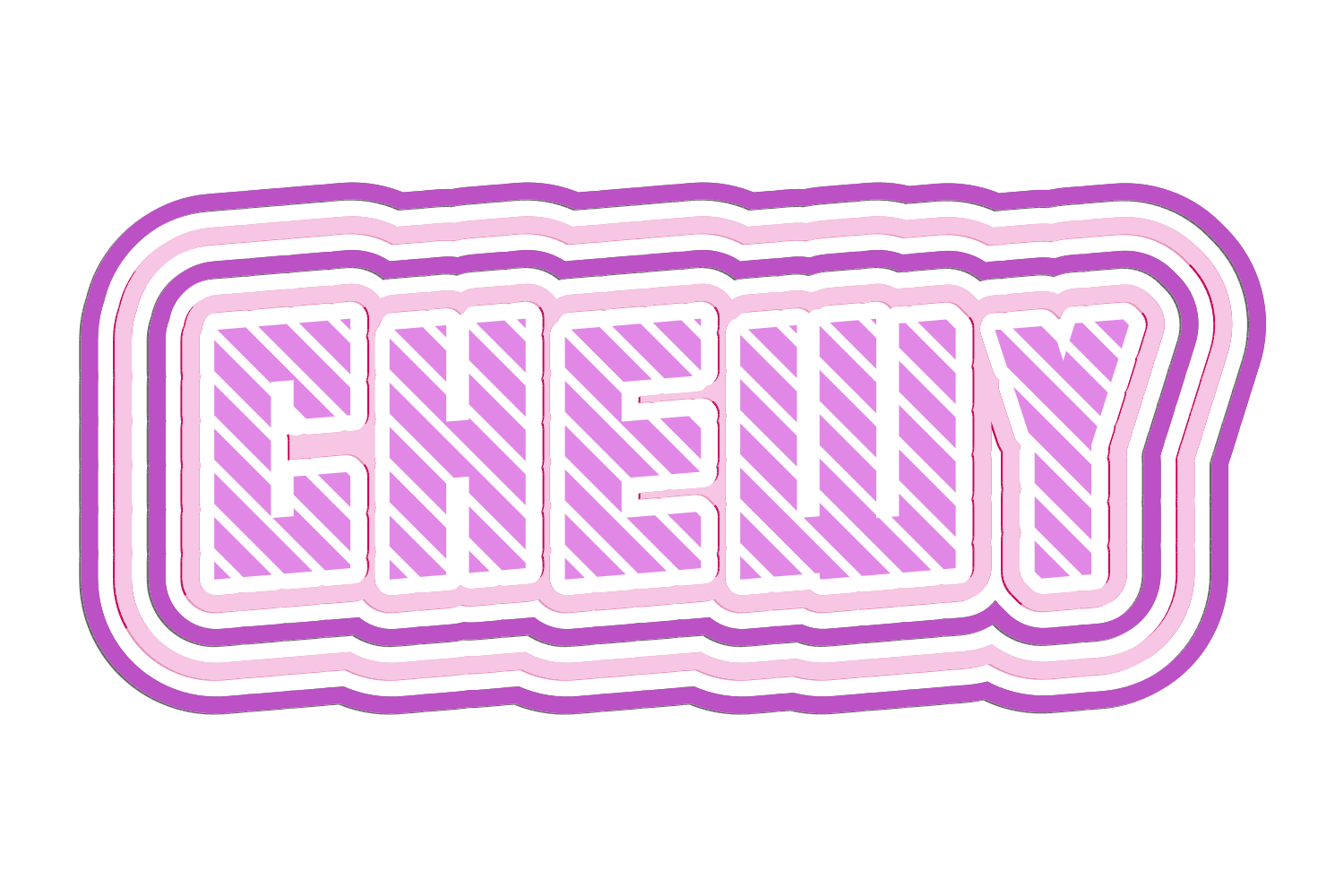
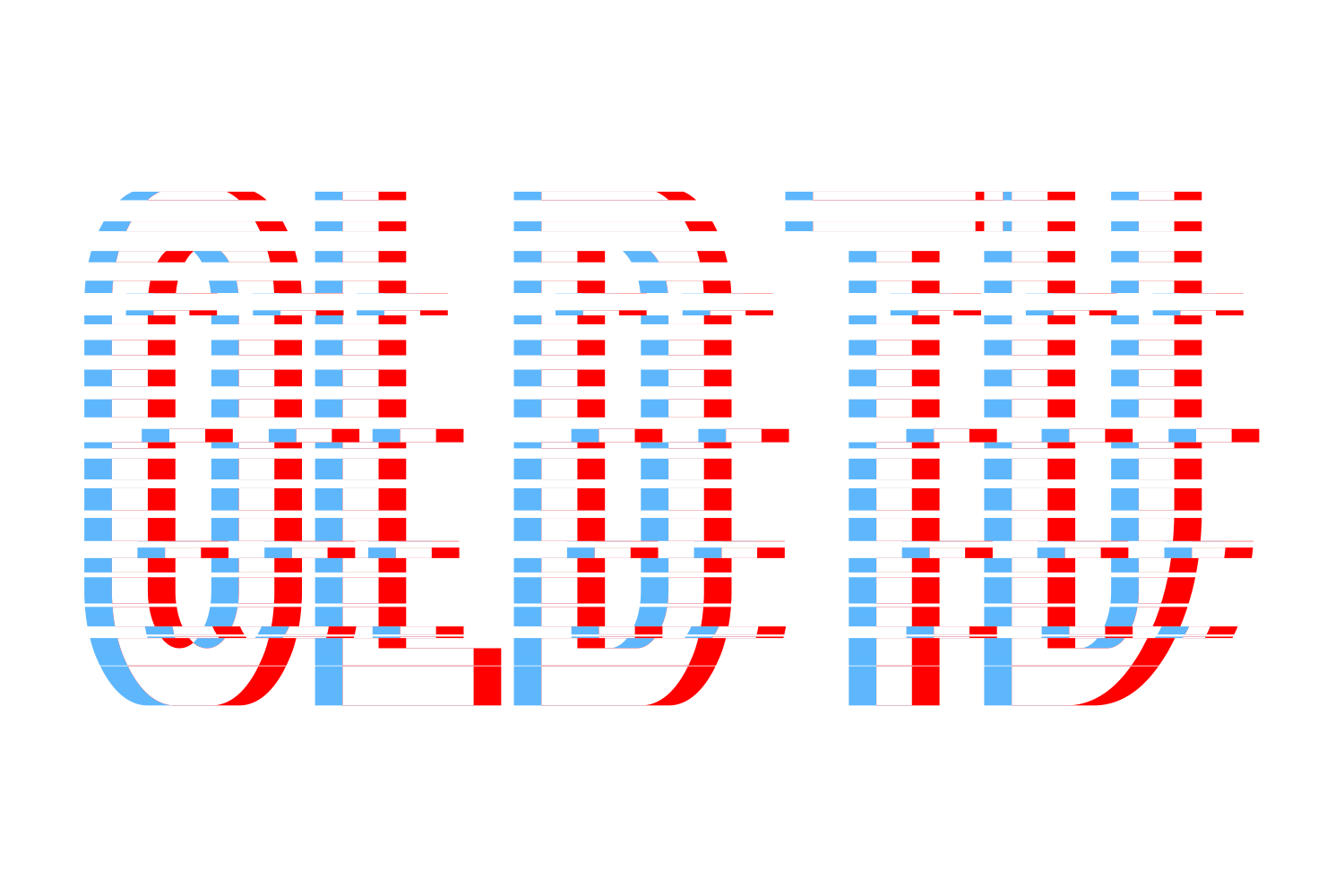
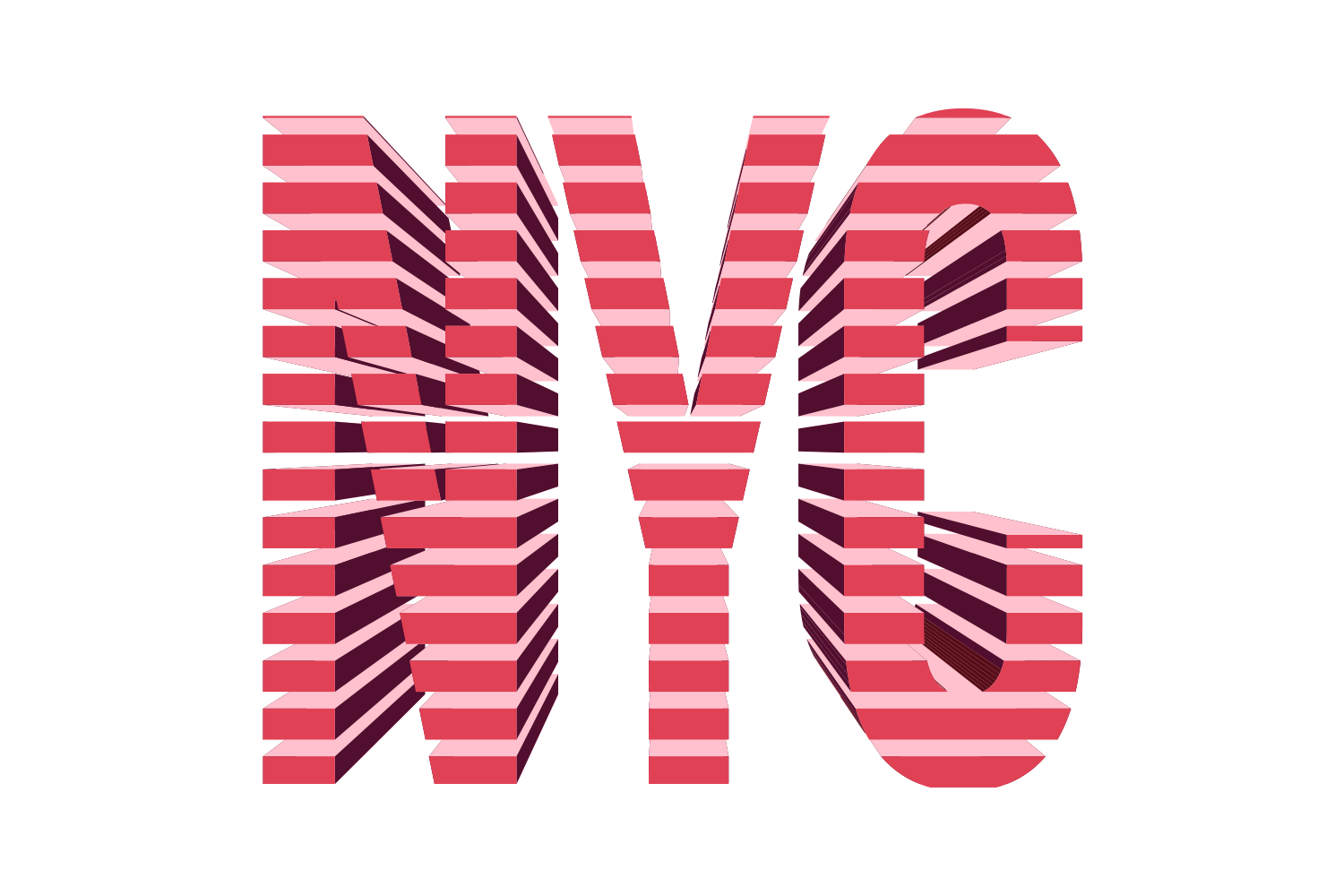
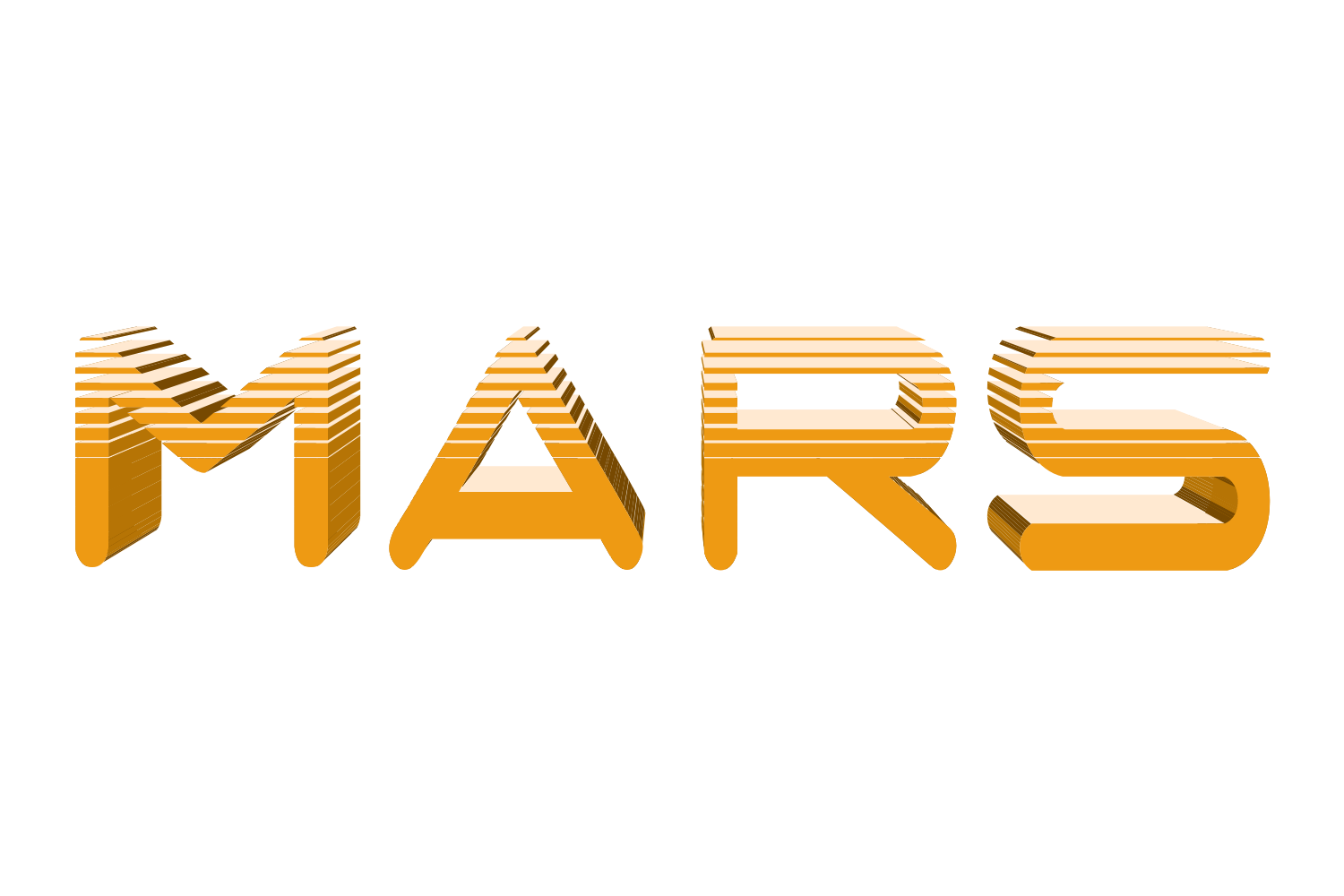
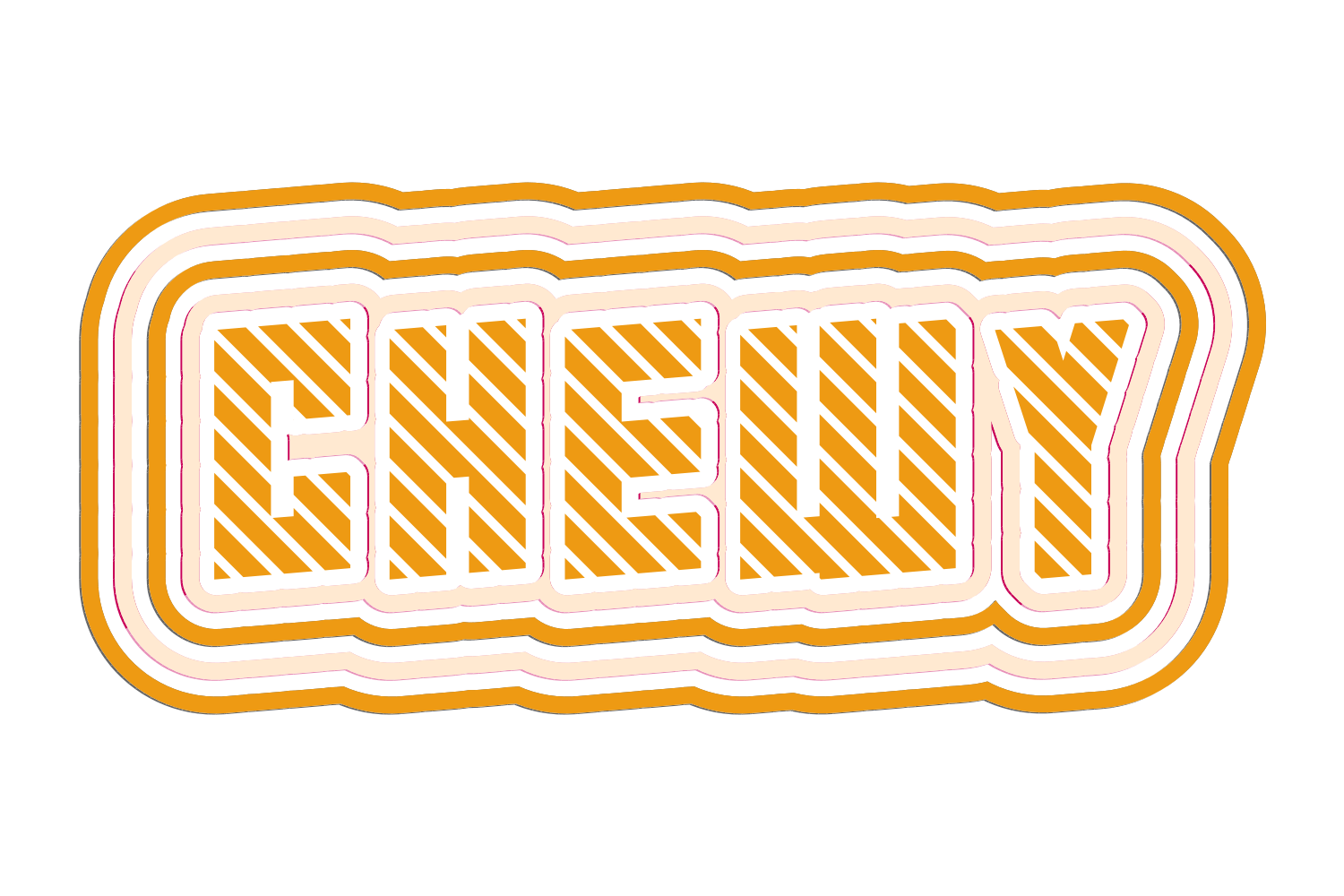
Transparent grooves are cut through the shape at the chosen angle, turning it into separate bars. Density sets how many; Uniform keeps every groove the same width, Graduated widens them across the Range. Widths are relative to the glyph height, and Scope decides whether the fill, the strokes, the extrusion or everything is sliced.
What you can adjust
Drag a slider to see what each control does to the type.
Angleframe 1 of 5 /img/effects/pattern-slice/angle/1.png
Angle−180 to 180°
1 / 5
Densityframe 1 of 5 /img/effects/pattern-slice/density/1.png
Density1–100%, default 8
1 / 5
Modeframe 1 of 2 /img/effects/pattern-slice/mode/1.png
ModeUniform / Graduated
1 / 2
Ratioframe 1 of 5 /img/effects/pattern-slice/ratio/1.png
Ratio5–95%, Uniform mode; default 60
1 / 5
Rangeframe 1 of 5 /img/effects/pattern-slice/range/1.png
Rangestart and end, Graduated mode
1 / 5
Scopeframe 1 of 4 /img/effects/pattern-slice/scope/1.png
ScopeFill and stroke / Fill only / Everything / Extrusion only; default Fill only
1 / 4
Still live text
Pattern Slice is applied as an Illustrator live effect, so the text stays editable. Change the word, the font, or any slider afterwards, and save the result as a Graphic Style to reuse it.