How to put a sunburst or starburst behind text in Illustrator
The built-in route is a starburst drawn with the Polar Grid tool or a rotated line under Effect › Distort & Transform › Transform, clipped to a shape and placed behind the text. JuicyType's Aura effect draws the rays from the word itself, live, and lets you swap them for bubbles with one popup.
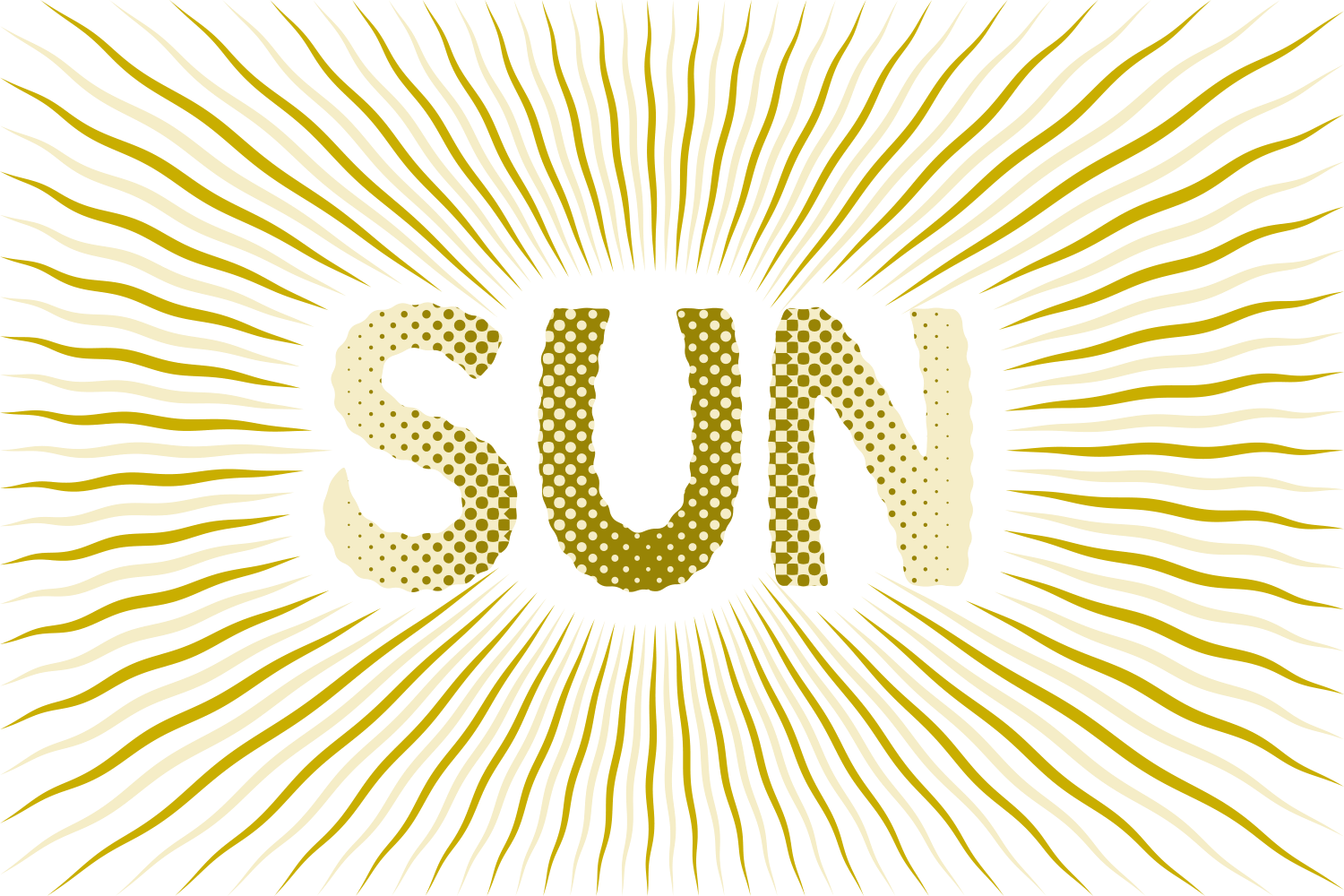
The manual way, in Illustrator
- Draw a line from the centre of your artboard outward, then Effect › Distort & Transform › Transform: Rotate 10°, 35 copies, for a 36-ray burst.
- Expand it (Object › Expand Appearance) and give the rays a thick stroke, or draw a triangle and rotate copies of that for tapered rays.
- Draw the containing shape, select both, and make a clipping mask (⌘7) so the rays stop at its edge.
- Send the group behind the text (⌘⇧[) and centre it on the word.
The burst is centred on a point, not on the letters, so it does not follow the word when you retype it, and every change to the ray count means expanding again.
Menu paths checked against Adobe's current Illustrator documentation; hands-on verification and screenshots are still to come.
Aura with JuicyType
Select the text, open the JuicyType panel, choose Aura, and drag. It is a live effect, so the text stays editable and every control can be changed later.
- StyleStarburst, Scatter Bubbles, Ray Bubbles or Siemens Star
- Aura colourAuto (the face fill), TC1 / TC2 / Black / White, or a document spot
- Alternateon/off, every other ray or bubble in a second colour of your choice
- Unpaint aura shapeon/off, the aura is cut out of the object below instead of painted
- Use shape belowon/off, default on: the aura fills the object behind the word; off, it fills a margin around the word
- Margin0–1500 em‰, default 300: how far the aura reaches when there is no shape below
- Rounding0–600 em‰, default 60: the corners of that margin
- Round cornerson/off with Corners 0–100%, softens the aura shape
- Text fit0–100%, default 70: how closely the rays hug the letters
- Rays1–200, default 36, for Starburst and Siemens Star
- Spacing1–99%, default 42: each ray's width as a share of its period
- Waveon/off, with Ridges 1–20 (default 3) and Ridge size 0–100% (default 40): wavy rays
- Twirlon/off with Angle −180 to 180°, default 45: the rays spiral
- Bubble shapeCircle, Star, Square or Triangle, for the two bubble styles
- Rays (bubbles)1–120, default 16, for Ray Bubbles
- Density25–400%, default 100, for Scatter Bubbles
- Size at word / at edge0–400 em‰ each, defaults 120 and 50: bubbles shrink or grow toward the edge
- Opacity at word / at edge0–100% each: bubbles fade toward the edge
- Gap at word / at edge0–250 em‰, defaults 60 and 160, for Scatter Bubbles
- Rearrangea new seed, another scatter of the same settings
Common questions
Does the aura follow the word when I retype?
Yes. It is drawn from the live text, so a longer word gets a wider burst, and the rays keep hugging the letters at the Text fit you set.
What does "Use shape below" do?
If the text sits on a shape, the aura fills that shape and stops at its edge. Turn it off and the aura fills a margin around the word instead.
Can the rays be two colours?
Turn on Alternate and pick a second colour: every other ray, or every other bubble, takes it.