How to make halftone text in Illustrator
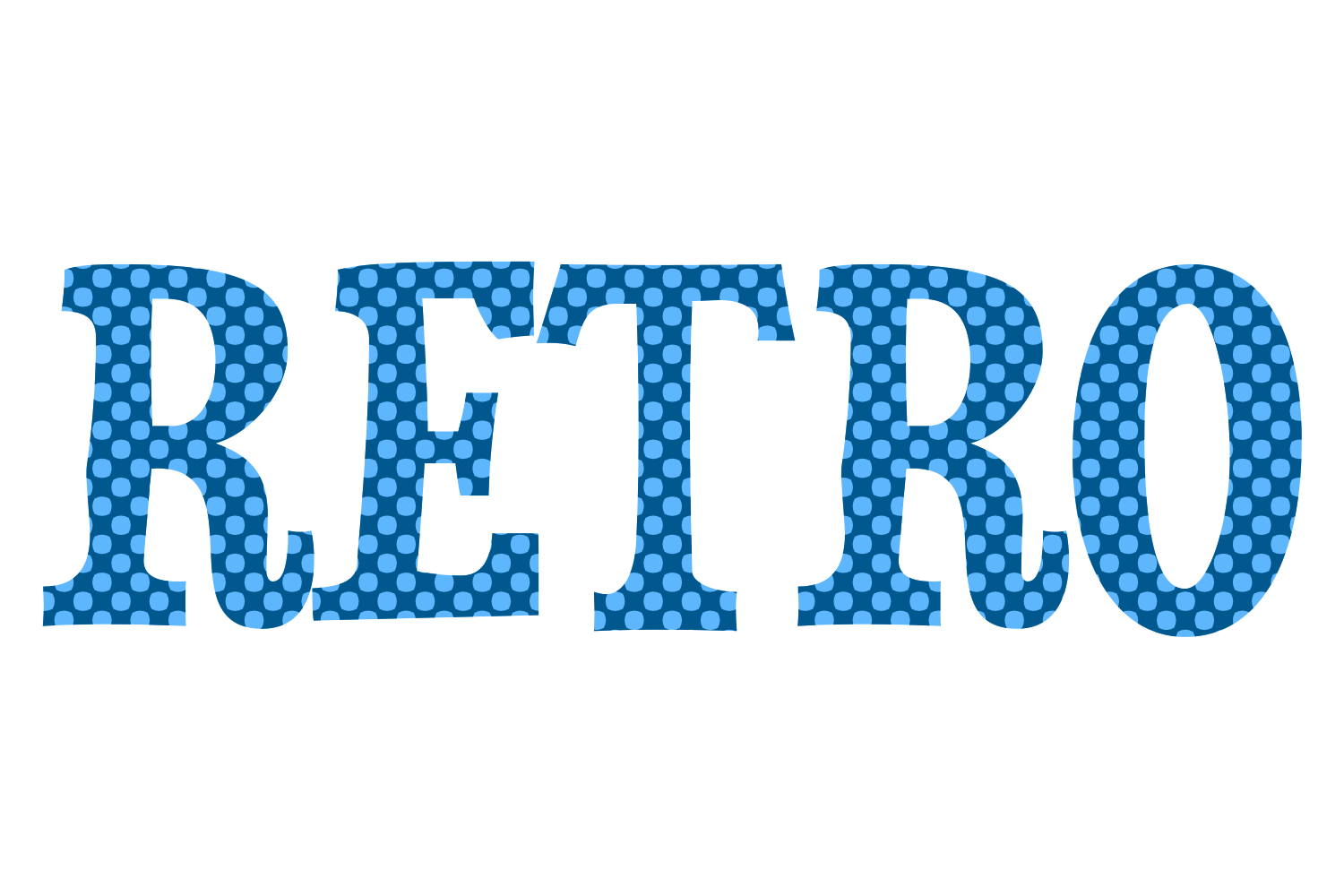
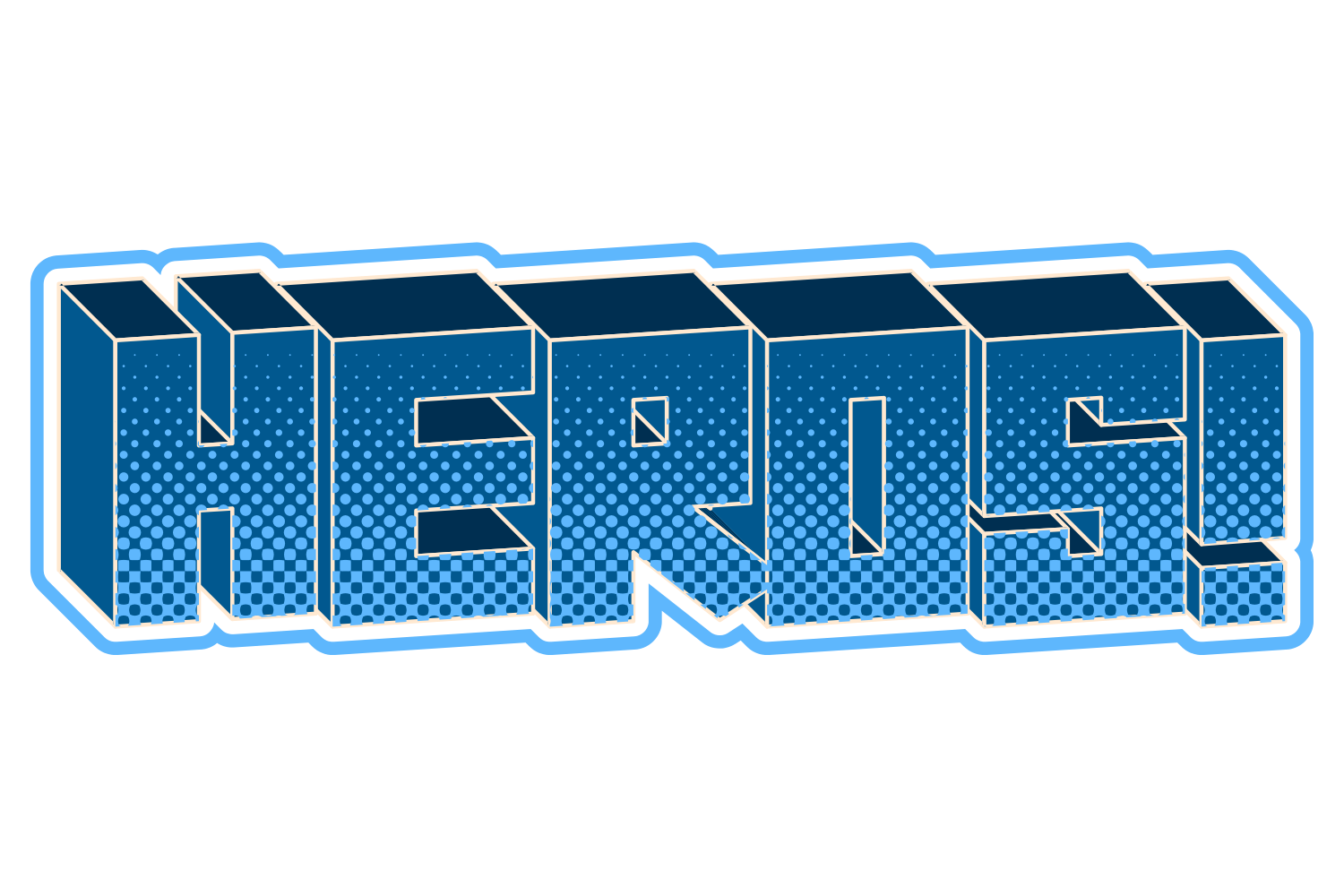
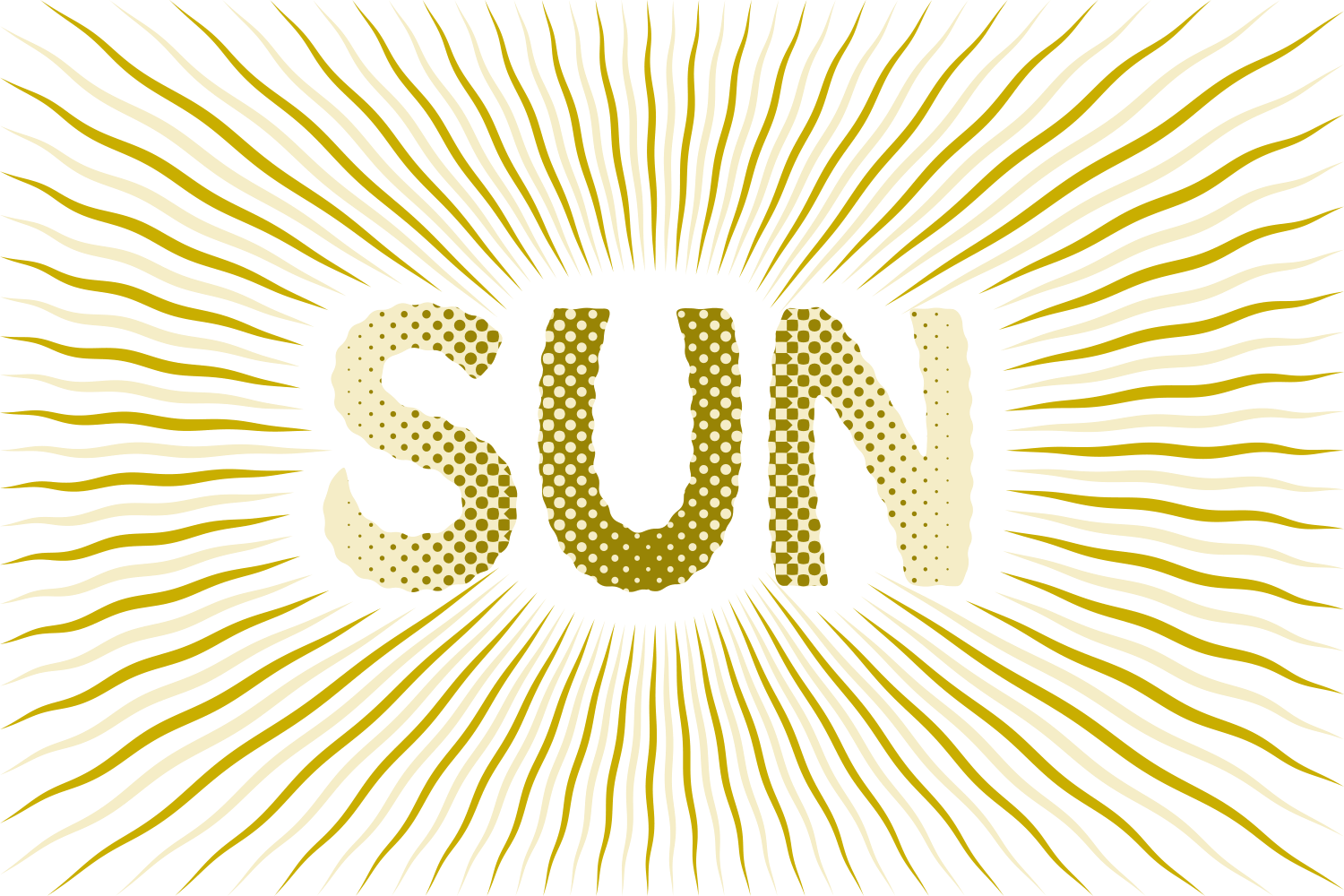
Fill the text with a dot pattern swatch, or rasterize a copy with Effect › Pixelate › Color Halftone and Image Trace it back to vector. JuicyType's Halftone Effects build a true vector dot lattice inside the letters with graded shading.
The manual way, in Illustrator
- Select the text and apply a dot pattern from Window › Swatch Libraries › Patterns › Basic Graphics › Basic Graphics_Dots.
- Scale the pattern with Object › Transform › Scale, ticking Transform Patterns only.
- For a graduated halftone (advanced): keep a live backup and give the working copy a greyscale gradient fill in the direction you want the dot size to change, since Color Halftone sizes its dots from tone and a flat colour gives even dots. Set Effect › Document Raster Effects Settings for the intended output, then apply Effect › Pixelate › Color Halftone; a Max Radius of 8–15 px is a starting range, and for a one-colour treatment give all four channels the same screen angle. Object › Expand Appearance, select the raster, open Window › Image Trace, use Black and White, adjust Threshold and Noise until the small dots survive, tick Ignore White (Ignore Color set to white in newer builds), and Expand.
Color Halftone itself can sit on live type; it is the expand-and-trace step that gives up the editable letters, and the traced result is heavy.
Menu paths checked against Adobe's current Illustrator documentation; hands-on verification and screenshots are still to come.
Halftone Effects with JuicyType
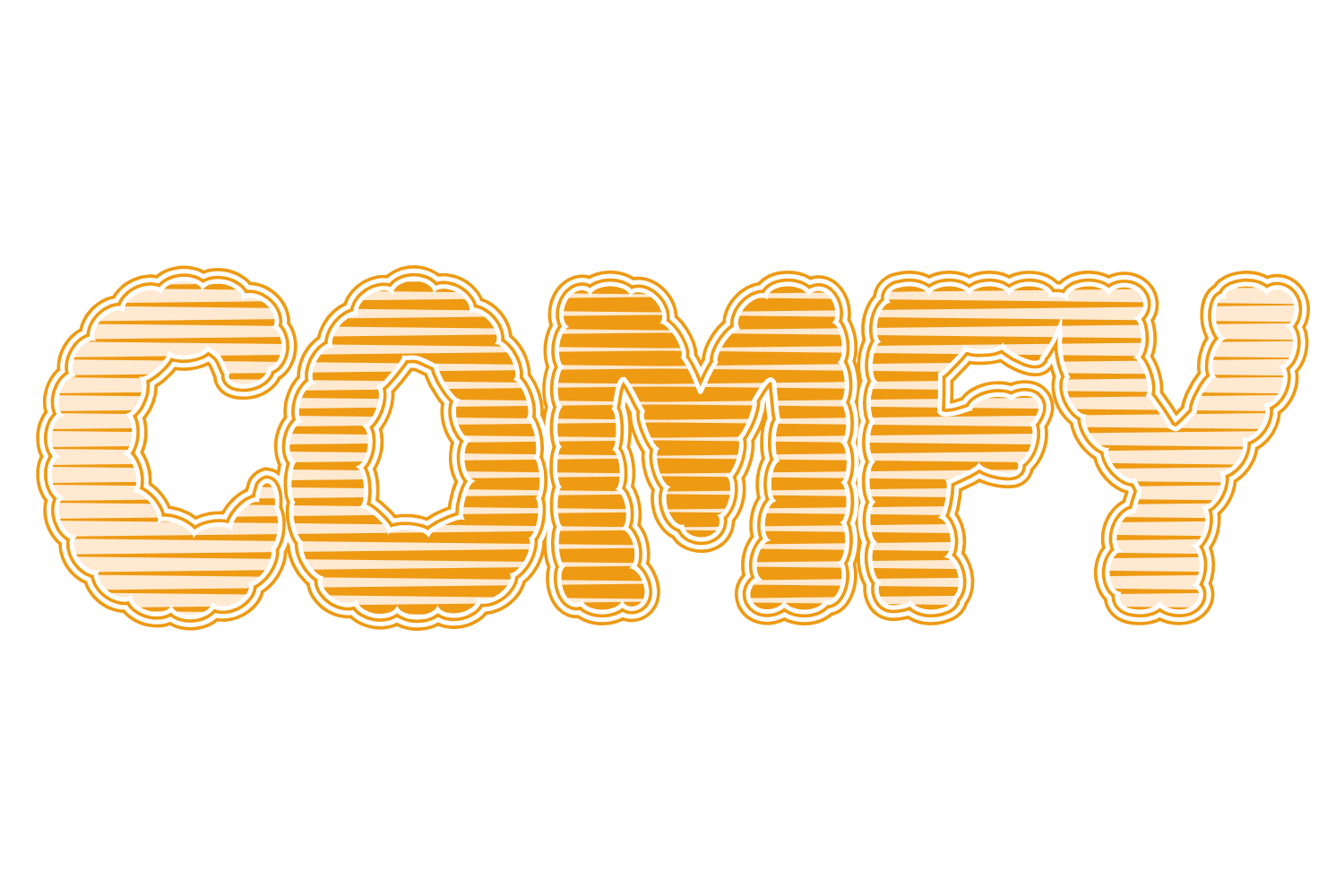
Select the text, open the JuicyType panel, choose Halftone Effects, and drag. It is a live effect, so the text stays editable and every control can be changed later.
- ScopeFill / Stroke / Fill and stroke / Part 1 / Part 2
- PatternCircle / Diamond / Lines / Decay
- Density2–30 pt, default 30
- Angle−180 to 180°
- Offset−100 to 100 pt
- Stretch shapes / Space shapes10–500%
- ColourTC1 / TC2 / Black / White / spot; default White
- DistributionUniform / Linear / Circle / Inner / Feather / Mirror
- Shade1–100%, default 60, with end shade, amount, direction and range for the graded modes
- Transparentknockout instead of a second colour
Common questions
Can the dots get smaller toward the edge?
Not with a pattern swatch. JuicyType's Distribution modes handle that; the manual way needs the halftone-and-trace route.