How to slice text into stripes or fill it with a pattern in Illustrator
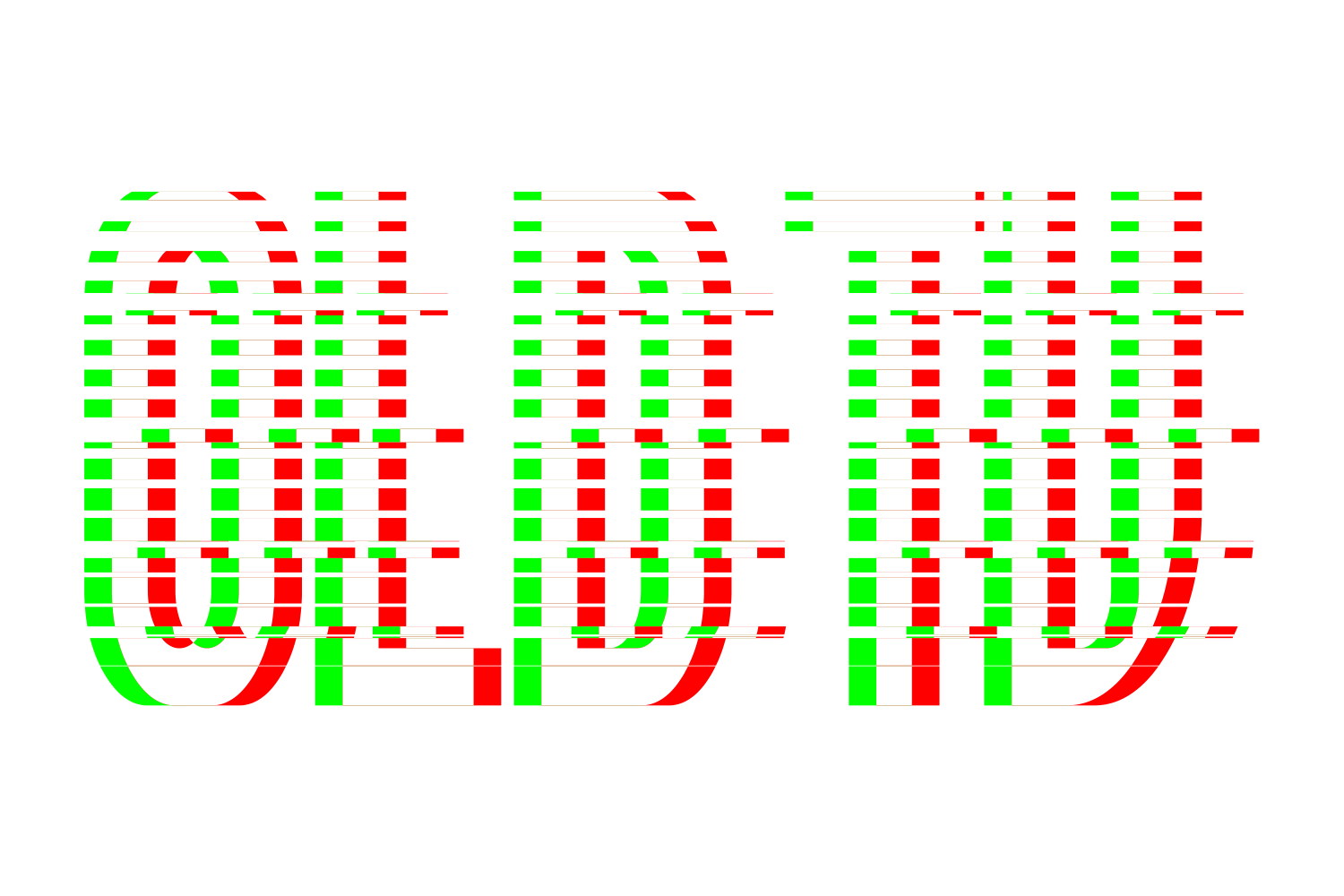
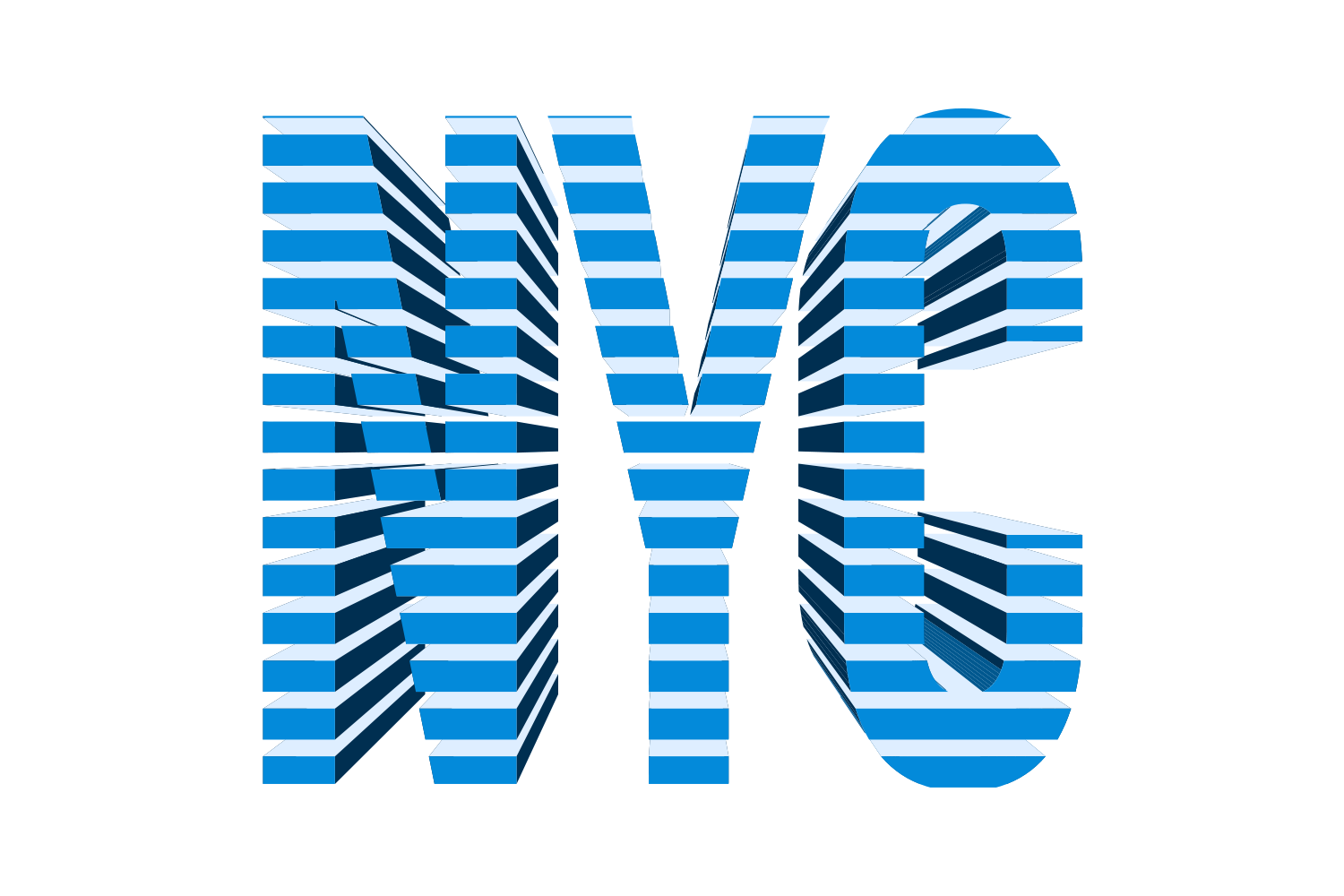
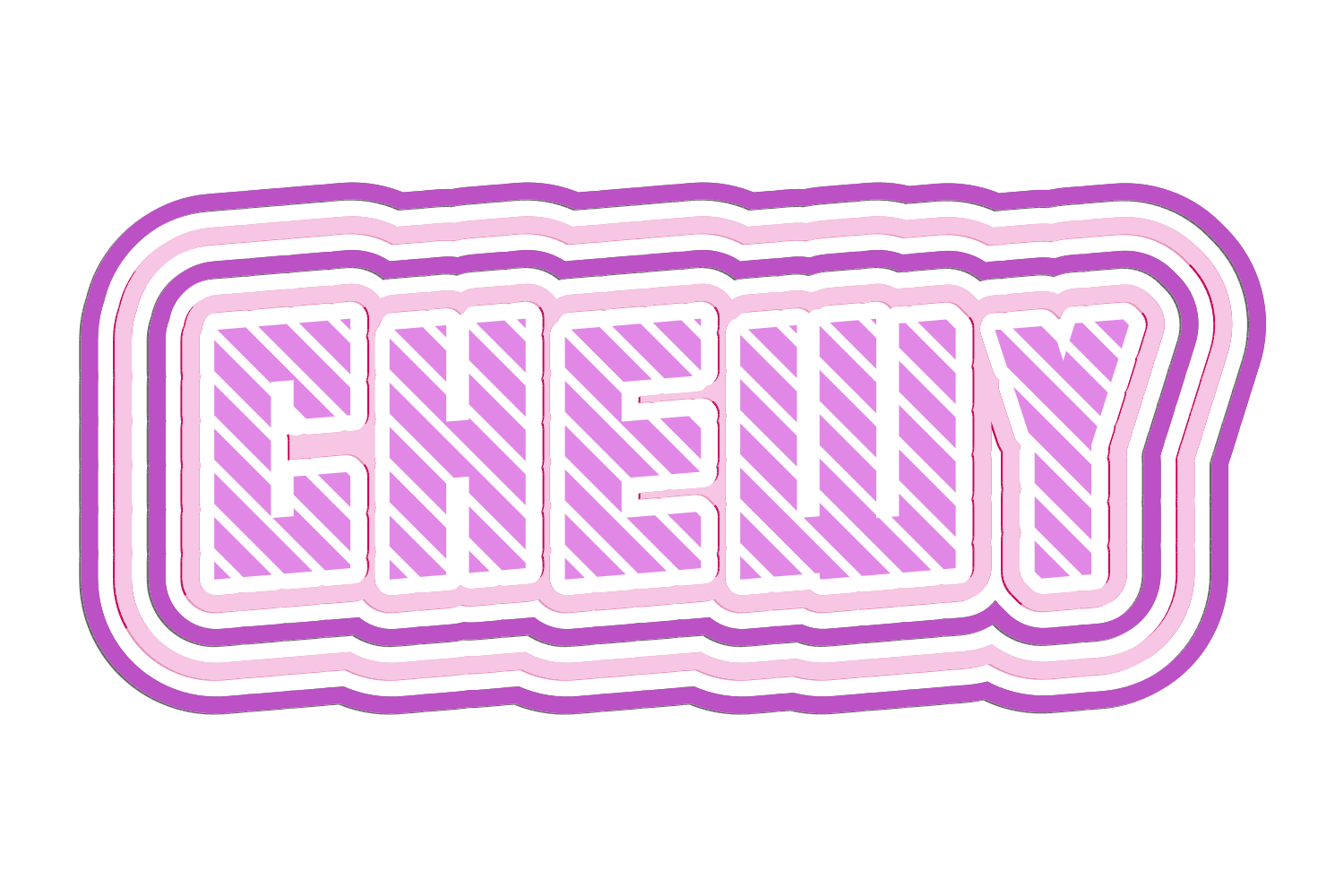
For stripes across the letters, draw the bands, put the text above them and make a clipping mask, or apply a striped pattern swatch to a fill in the Appearance panel. Both keep the text live. JuicyType's Pattern Slice cuts grooves through the type, and its extrusion, at any angle and density, as a live effect.

The manual way, in Illustrator
- Select the text object with the Selection tool. In Window › Appearance click Add New Fill, keep it above the Characters row, and click that fill to target it.
- Choose a pattern from Swatches or Window › Swatch Libraries › Patterns.
- To make your own bands: draw and group the stripes, then put the live text above that group with Object › Arrange › Bring to Front. Select the text and the stripe group and choose Object › Clipping Mask › Make. Edit the text inside the clipping group with the Type tool; use isolation mode or the Layers panel if it is hard to select.
- Scale the pattern with Object › Transform › Scale, Transform Patterns only.
Illustrator uses the topmost object as the mask, so the text must sit above the stripes. Text used as a clipping mask stays live type; the mask hides whatever falls outside the letters rather than outlining them.
Menu paths checked against Adobe's current Illustrator documentation; hands-on verification and screenshots are still to come.
Pattern Slice with JuicyType
Select the text, open the JuicyType panel, choose Pattern Slice, and drag. It is a live effect, so the text stays editable and every control can be changed later.
- Angle−180 to 180°
- Density1–100%, default 8
- ModeUniform / Graduated
- Ratio5–95%, Uniform mode; default 60
- Rangestart and end, Graduated mode
- ScopeFill and stroke / Fill only / Everything / Extrusion only; default Fill only
Common questions
Can the stripes be angled?
Yes, rotate with Transform Patterns ticked. JuicyType has an Angle control.