How to make dripping or melting text in Illustrator
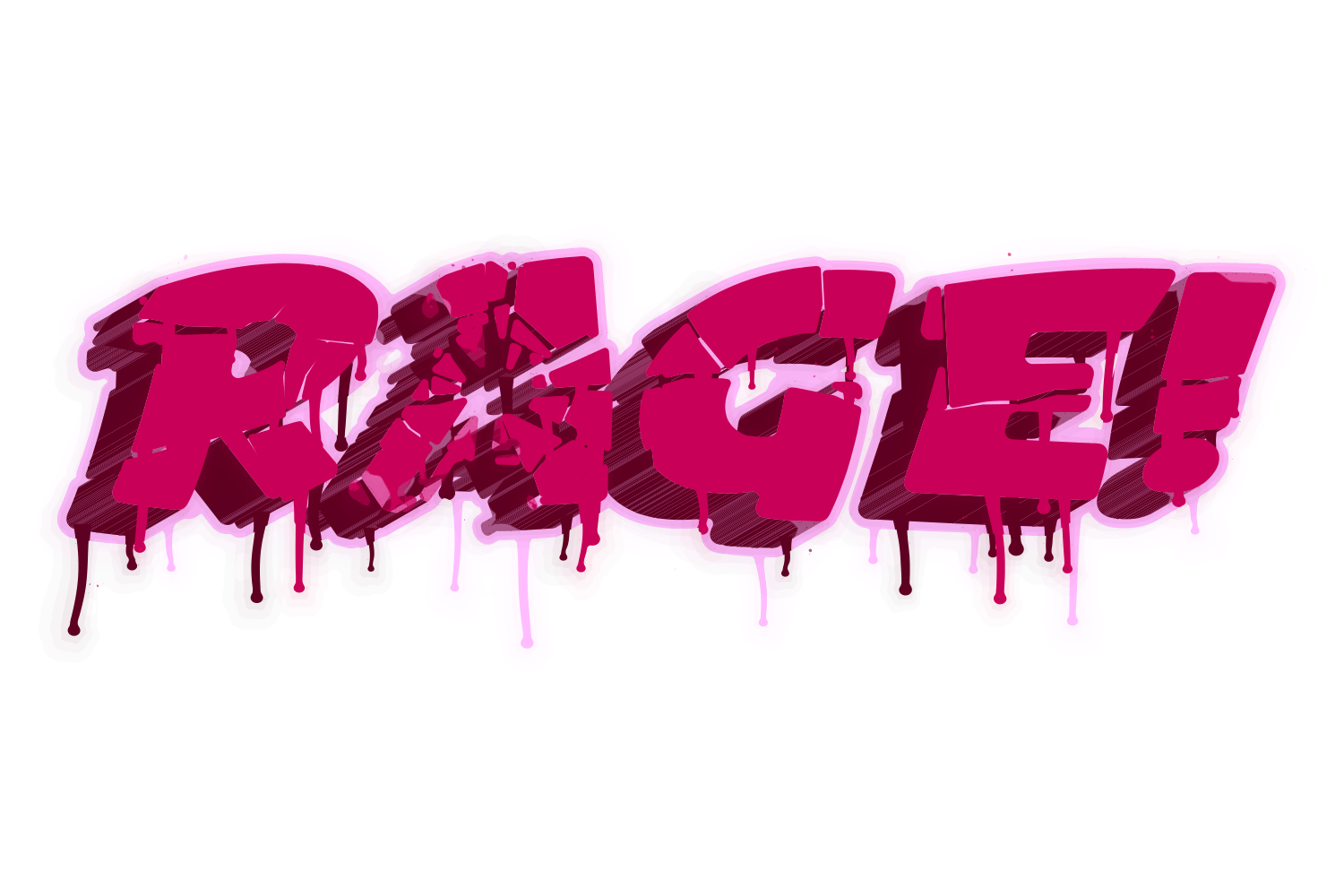
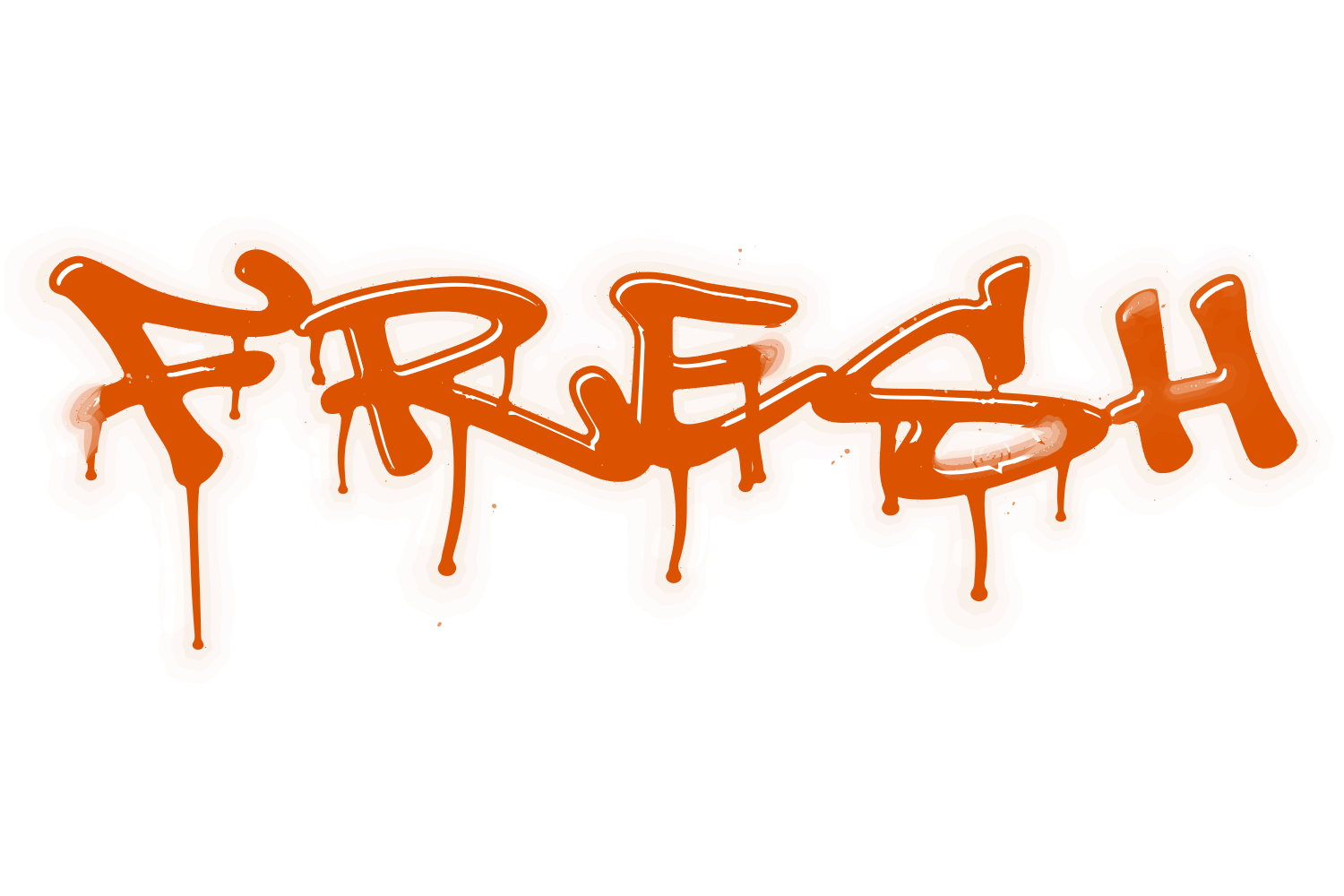
Drips are drawn: outline a copy of the text, add teardrop shapes hanging from the bottoms of the letters with the Pen or Blob Brush, and Pathfinder › Unite. For a softer melt, use Effect › Warp › Flag or a Mesh envelope. JuicyType's Drip effect adds drips and spray to the letters as a live effect.
The manual way, in Illustrator
- Duplicate the text, Type › Create Outlines on the copy, and ungroup.
- With the Blob Brush or Pen, draw closed, filled drip shapes that overlap the lower edges of the letters: a thin neck widening to a round drop.
- Select the letters and drips and click Unite in the Pathfinder panel.
- Smooth joins with the Smooth tool, and add a highlight ellipse on each drop.
Drawn drips belong to one word; change the text and they must be redrawn. Illustrator's Liquify tools (Warp, Bloat, Wrinkle and the rest) do not work on live type, so drawn drips start with Create Outlines; Effect › Warp and Envelope Distort are the melt options that keep the text live.
Menu paths checked against Adobe's current Illustrator documentation; hands-on verification and screenshots are still to come.
3 effects in JuicyType
Drip adds running drips, overspray and splatter to the letters as a live effect, so the word can still be retyped; Highlight and Gradient sell the wet surface. Swish is different: it adds a single tail at the end of the word.
Common questions
Is there a brush for drips?
No built-in one; draw them with the Blob Brush or the Pen, or use JuicyType's Drip effect.