How to convert text to a shape (outlines) in Illustrator
Select the text and choose Type › Create Outlines (⇧⌘O). The letters become editable paths you can cut, merge and reshape, and they no longer need the font. Undo restores the type only while the step is in history, so keep a live copy. Most effects no longer require it; JuicyType's effects work on the live text.
The manual way, in Illustrator
- Duplicate the text (⌘C, ⌘F) and hide the original in the Layers panel as a backup.
- Select the copy and go to Type › Create Outlines.
- Ungroup (⇧⌘G) to edit letters individually; use the Direct Selection tool for points.
- Merge or cut with the Pathfinder panel as needed.
Outlined text is heavier for the file and cannot be spell-checked or retyped; reserve it for hand-lettering edits or printer requirements.
Menu paths checked against Adobe's current Illustrator documentation; hands-on verification and screenshots are still to come.
3 effects in JuicyType
The three common reasons to outline text, cutting it, splitting it and adding tails, are each a live effect in JuicyType.
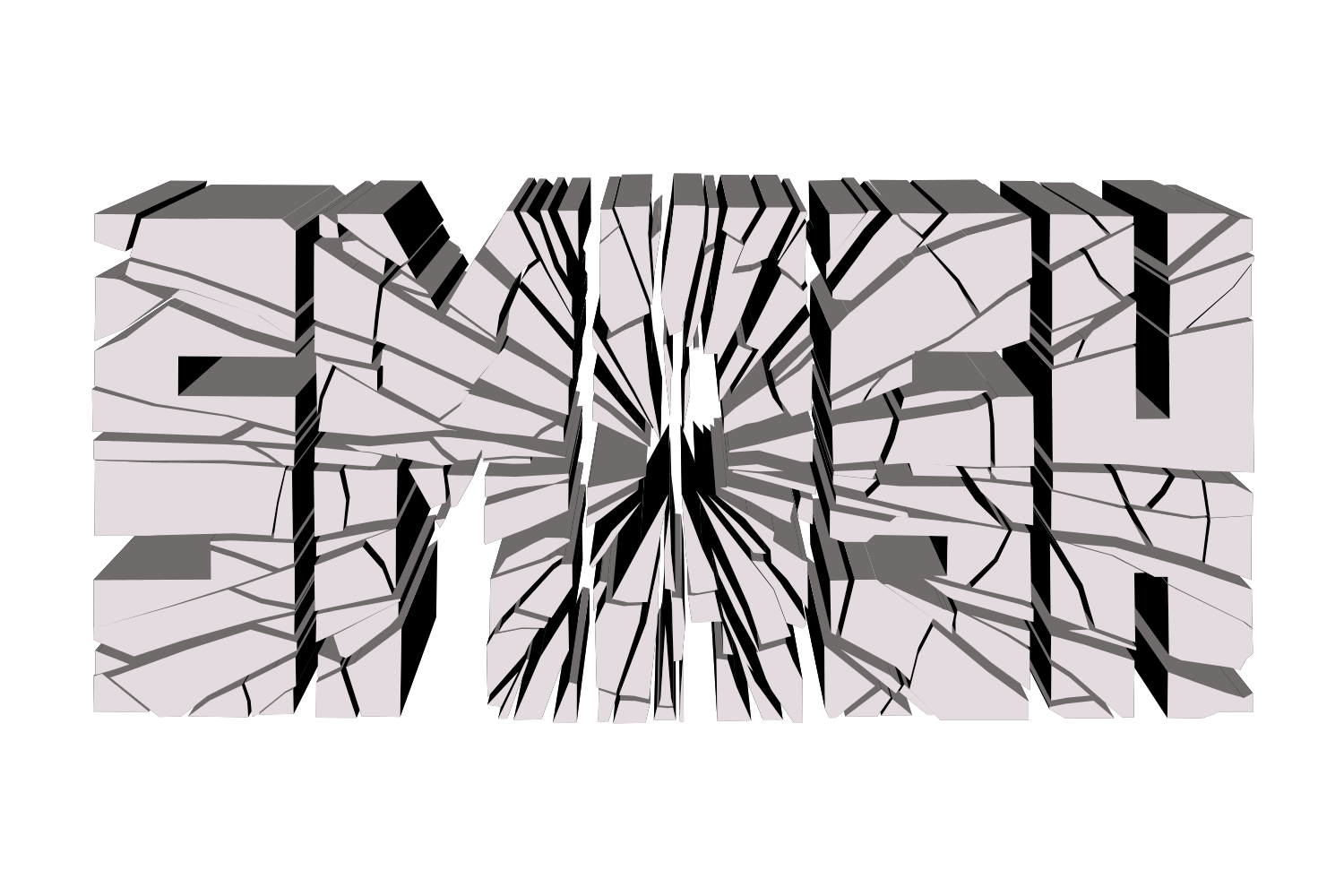
- Crackshards and cracks without cutting outlines by hand
- Split Facea divide-and-shift split as a live effect
- Swishtails drawn out of the letters, no Pathfinder
Common questions
How do I undo Create Outlines?
With Undo while the step is still in history. After that, retype the text; that is why you keep a live copy.