How to put text inside a shape in Illustrator
Draw the shape, choose the Area Type tool (under the Type tool) and click the shape's edge; the text flows inside it. To make the letters themselves take a shape, use Envelope Distort › Make with Top Object. To turn text into an editable shape, use Type › Create Outlines.
The manual way, in Illustrator
- Draw a closed shape with any shape or Pen tool.
- Hold on the Type tool, pick Area Type, and click the shape's outline. Type or paste; text wraps inside.
- Adjust with Type › Area Type Options: Inset Spacing, Rows and Columns, First Baseline. If the text overflows, click the red plus on the frame and click another shape to thread it.
- To mould the letters to a shape instead: place the shape over the text, select both, Object › Envelope Distort › Make with Top Object. The shape must be a single closed path on top.
Area type shapes lose their own fill and stroke; add a copy behind if the shape should show. Make with Top Object can wave the letters on an asymmetric shape; simplify the shape, change the starting layout, or adjust the mesh, since Fidelity only controls how closely the fit follows the shape.
Menu paths checked against Adobe's current Illustrator documentation; hands-on verification and screenshots are still to come.
3 effects in JuicyType
For text that sits on or in a shape, Ribbon Banner and Sticker draw the container from the text, so a longer word grows the shape.
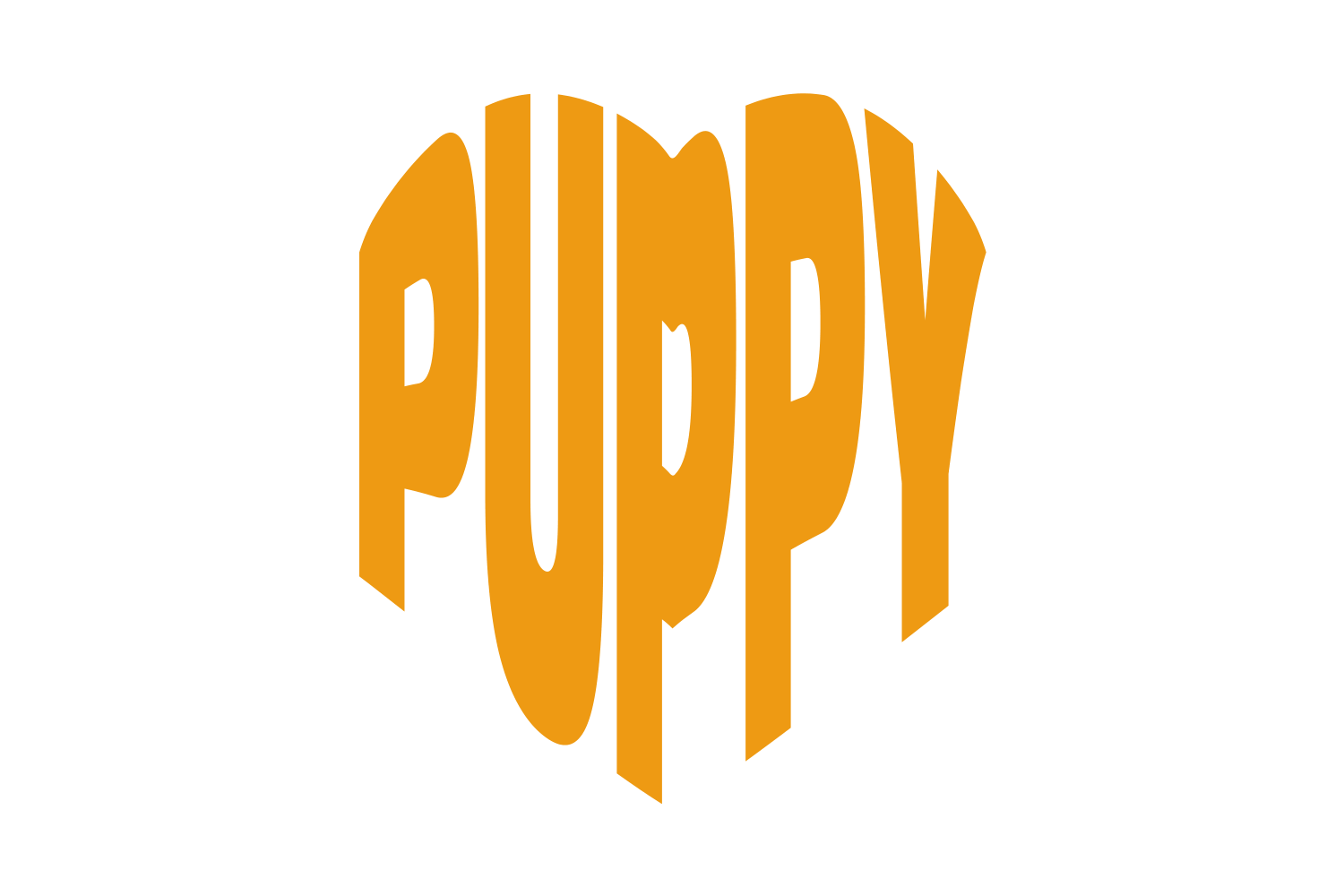
- ShapePennant, Oval, Heart, Arch and more: the word warped into the container, container drawn behind
- Ribbon Bannera banner drawn from the word
- Stickera die-cut shape that follows the letters
Common questions
Area type, point type, what is the difference?
Point type grows from a click; area type fills a container and wraps. Double-click the end handle to convert between them.