How to add texture or a distressed look to text in Illustrator
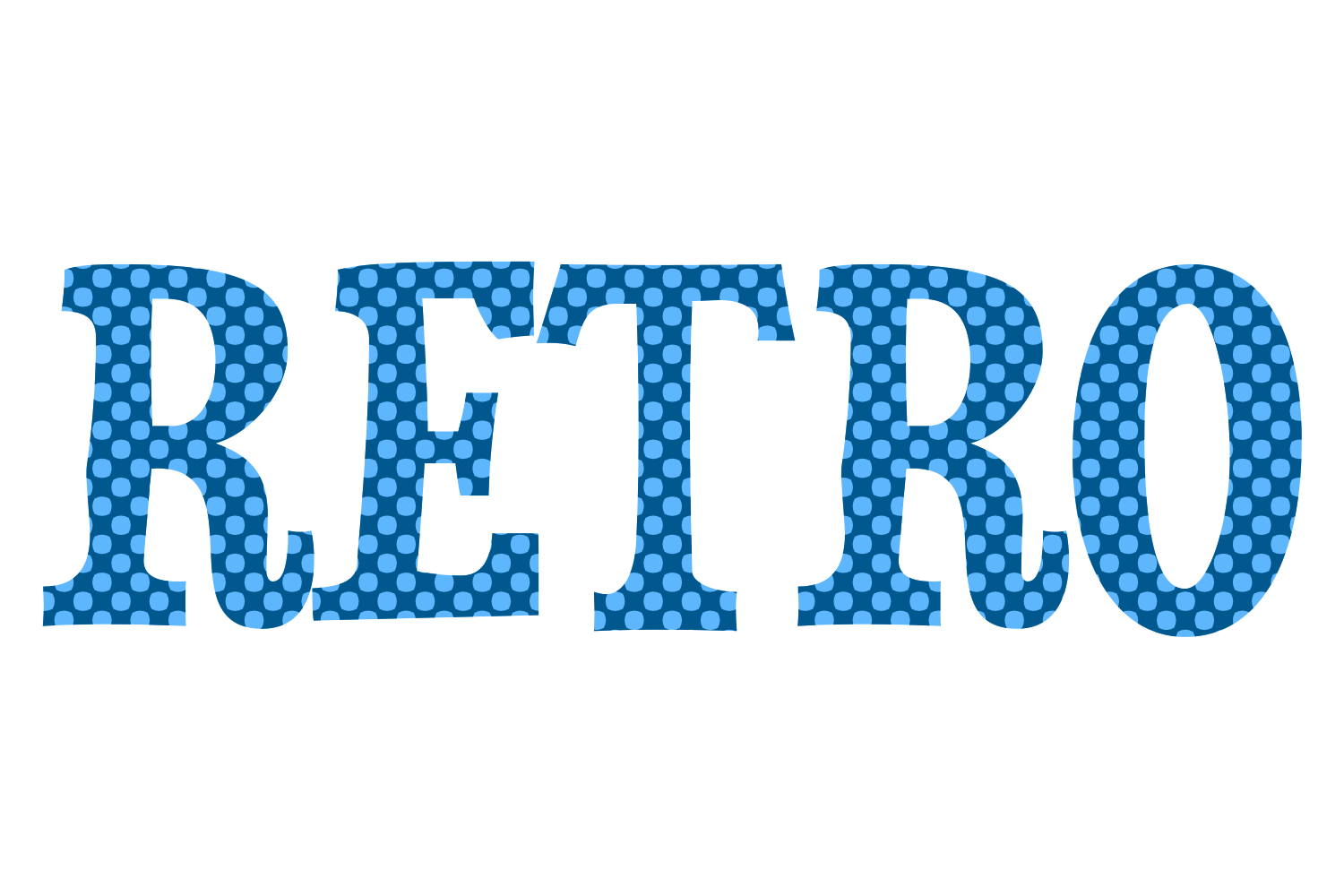
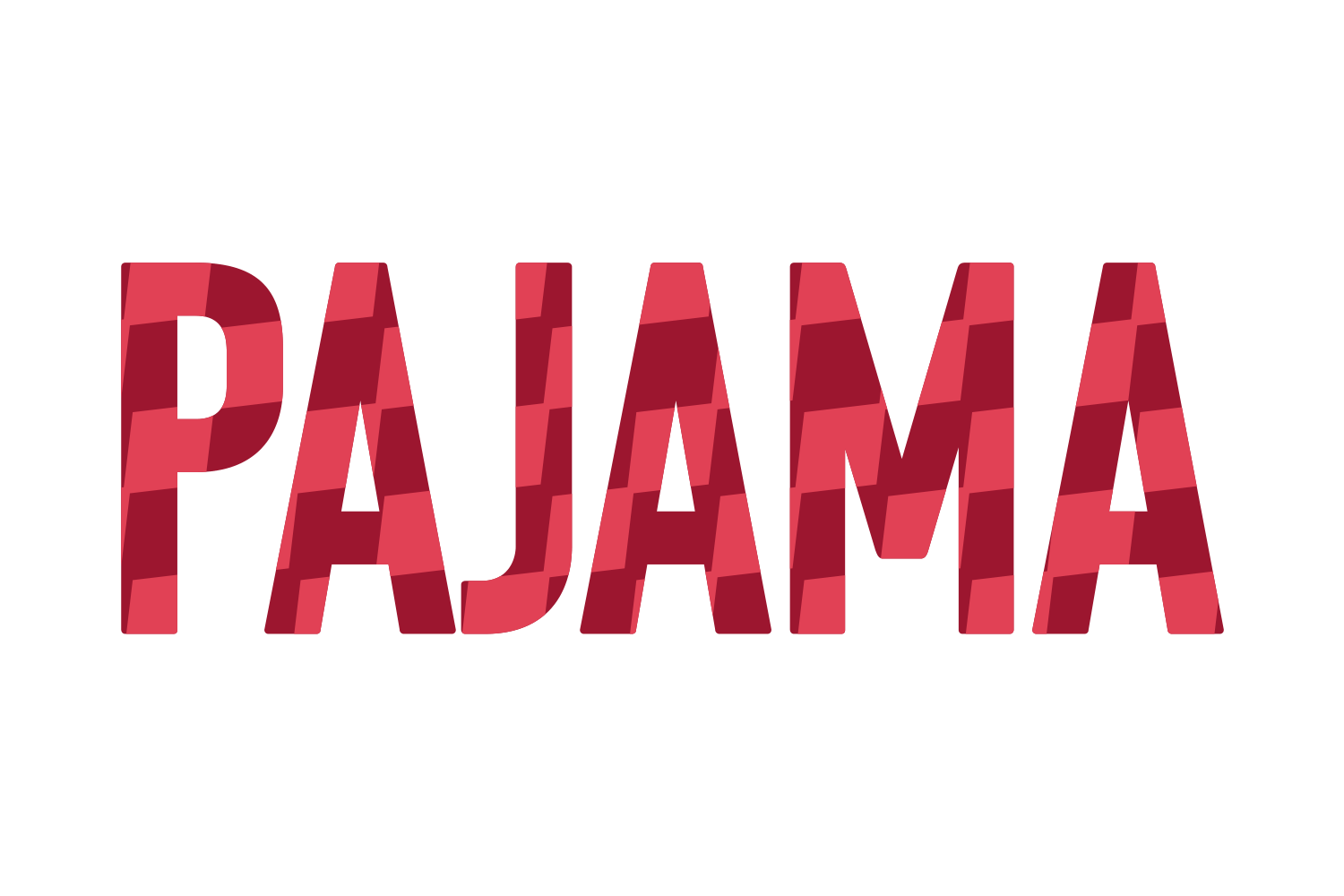
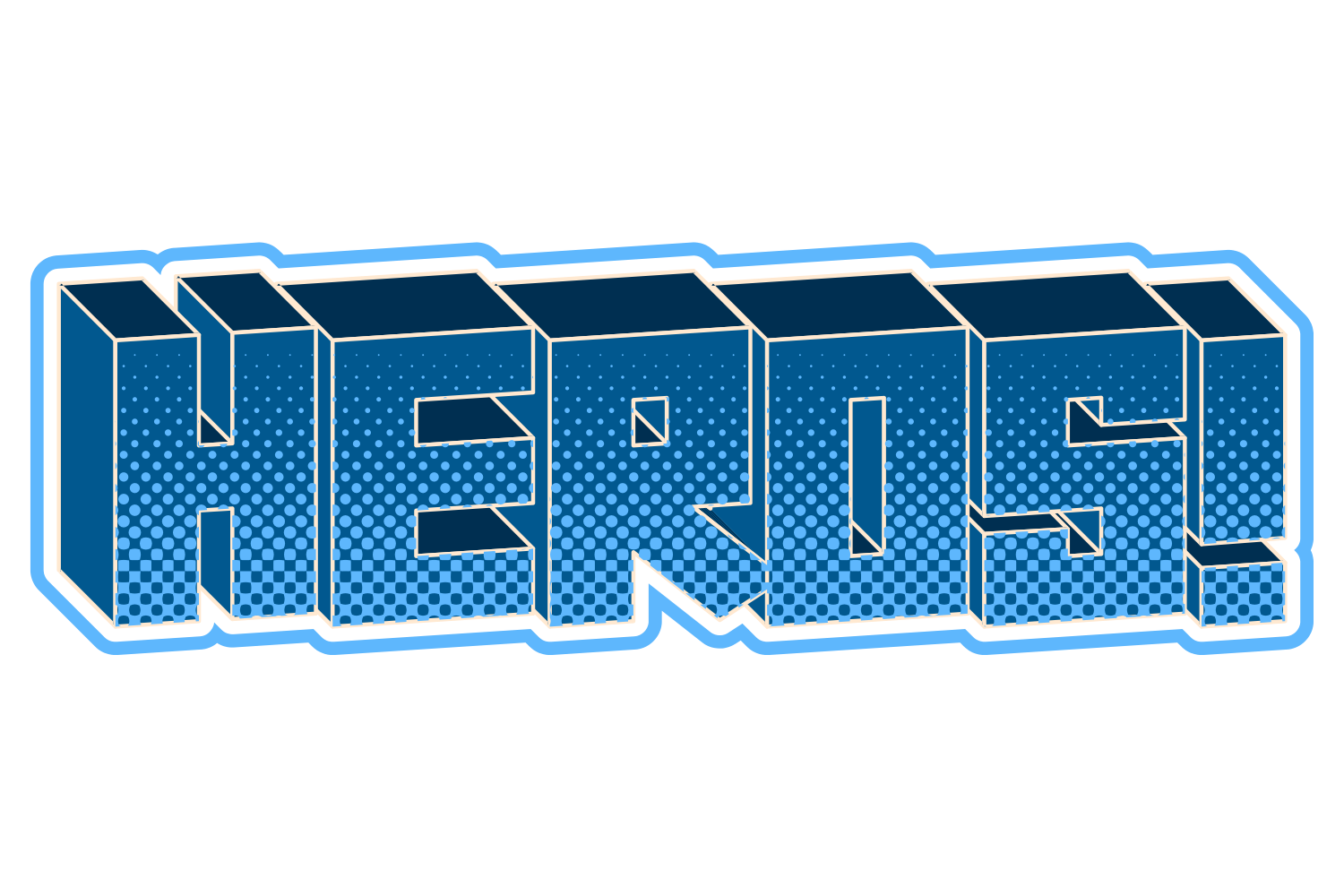
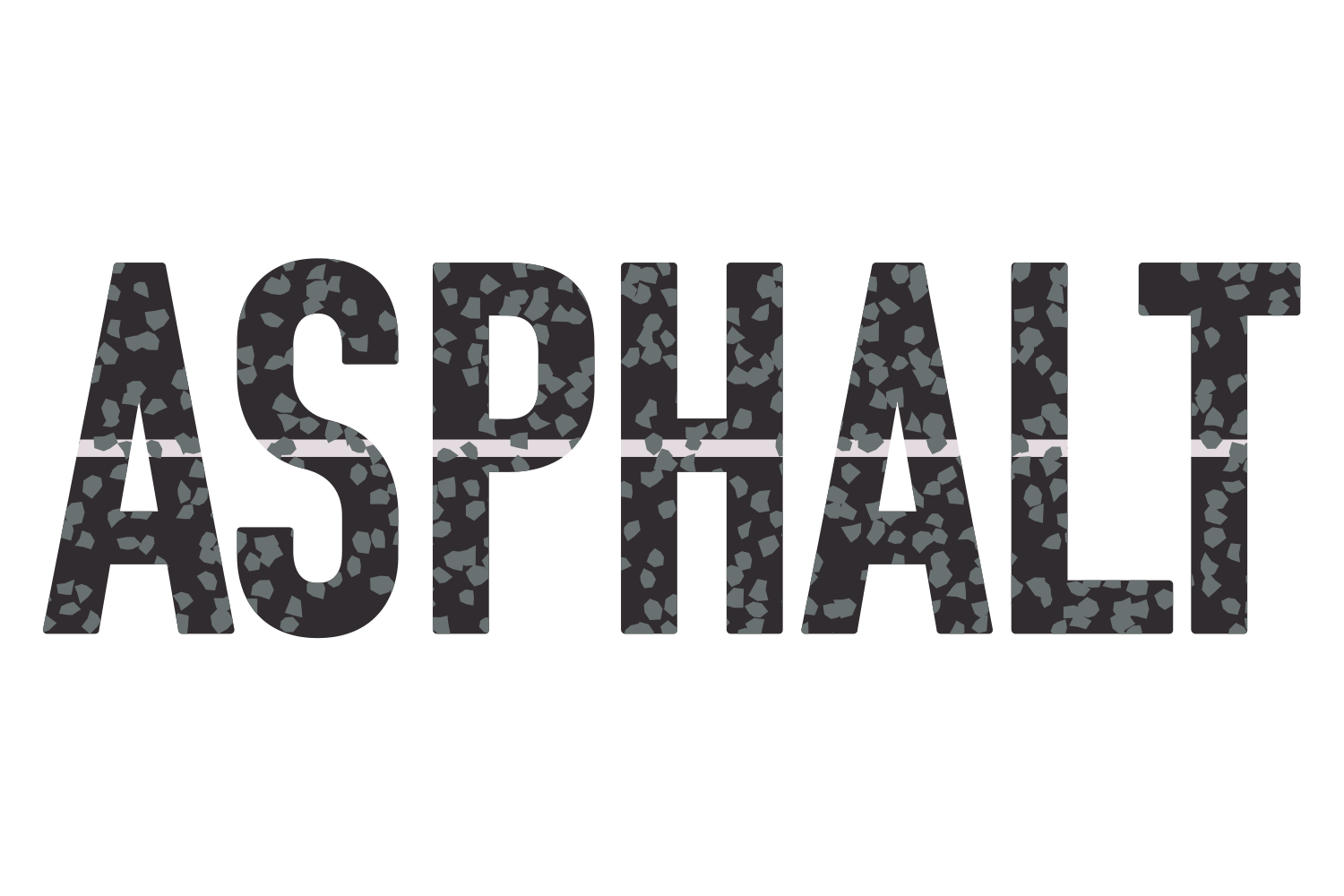
For a printed texture, add Effect › Texture › Grain or an opacity mask filled with a grunge texture; both keep the text live. For chipped edges, use a scatter brush on a mask or, destructively, Pathfinder on outlines. JuicyType's Halftone and Crack / Shatter give a printed dot texture and worn breaks as live effects.
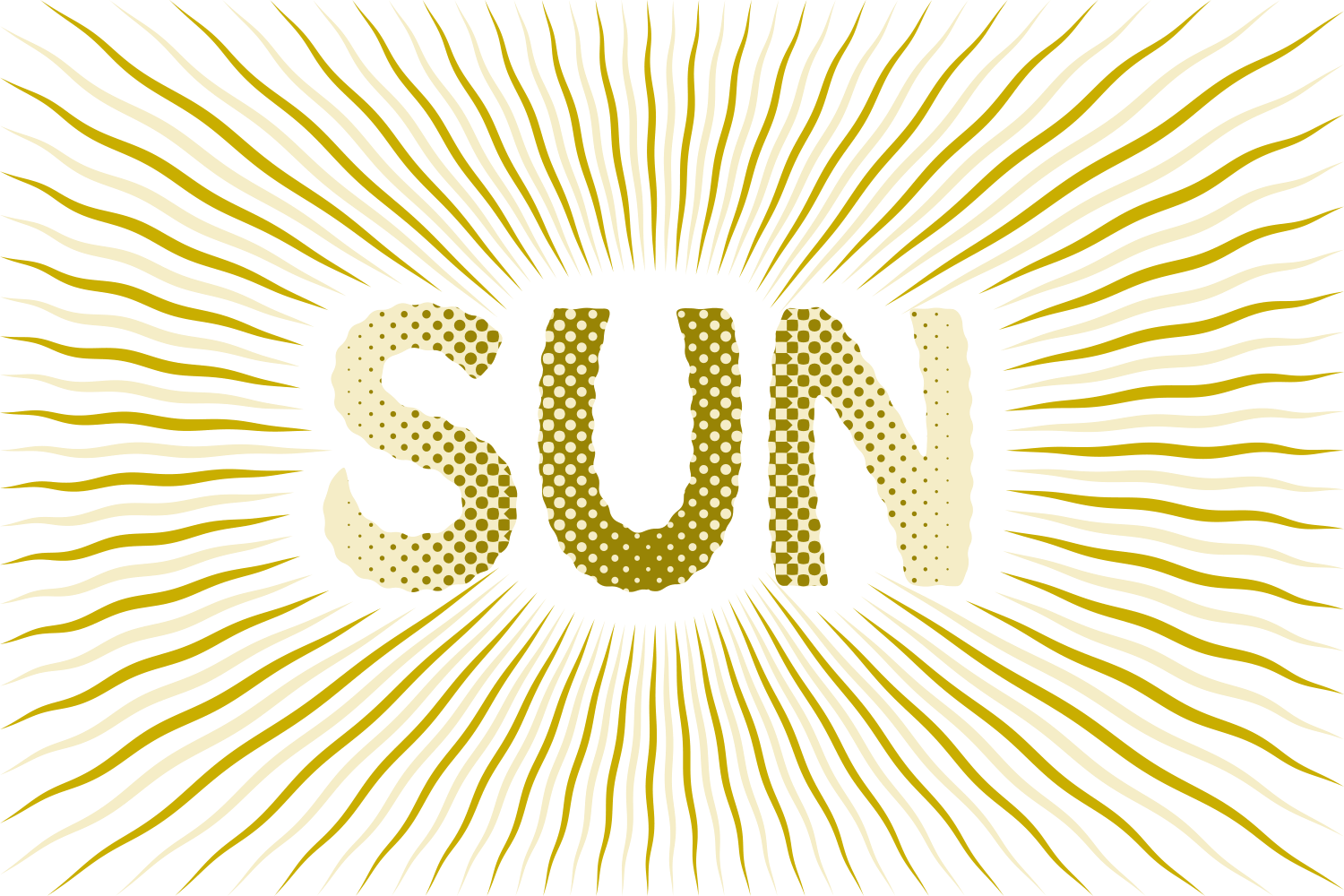
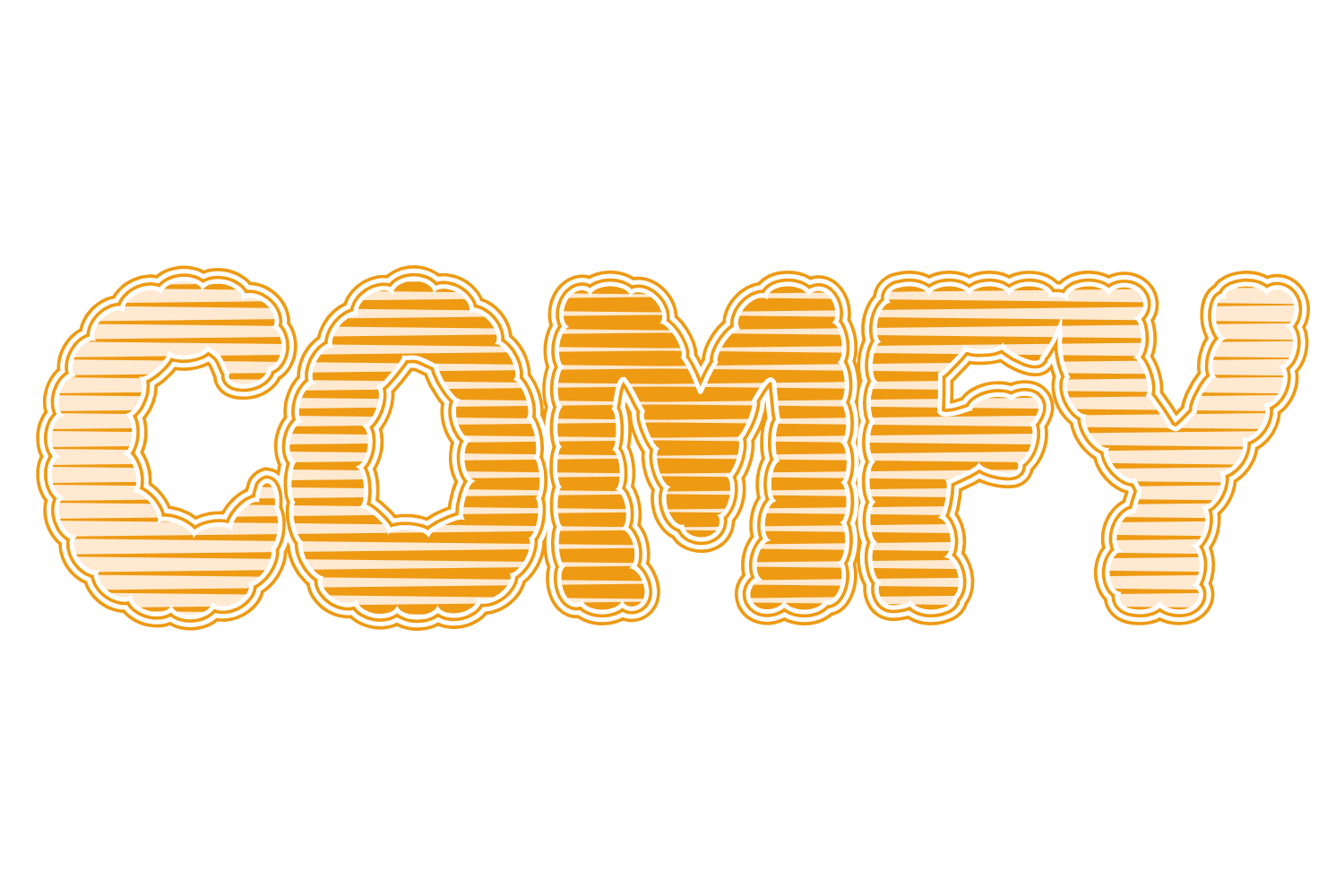
The manual way, in Illustrator
- Select the text and apply Effect › Texture › Grain: Sprinkles or Stippled, low intensity.
- For rough edges that stay vector, use Effect › Distort & Transform › Roughen with a small Size and high Detail.
- For a real texture: place a grunge image over the text, select both, open the Transparency panel and click Make Mask. In a normal mask white reveals and black hides, so if the holes come out the wrong way round, tick Invert Mask.
- For chipped edges non-destructively: with Invert Mask off, click the mask thumbnail to edit the mask, cover the text with white, then paint black marks with a scatter brush to knock chips out. Grey gives partial transparency. Click the artwork thumbnail when you are done.
Grain is a raster effect: set Document Raster Effects to 300 ppi before exporting for print. Roughen and the mask itself stay vector.
Menu paths checked against Adobe's current Illustrator documentation; hands-on verification and screenshots are still to come.
3 effects in JuicyType
Halftone and Crack are vector, so the texture prints sharp at any size and the word can still be retyped.
- Halftone Effectsa coarse dot lattice for a screen-printed feel
- CrackCrack mode, low Shift and Rotate, for worn breaks
- Strokesa rough band in a print colour
Common questions
Can I make the texture vector?
Image Trace a textured raster copy and use it as a mask, or use the JuicyType effects, which are vector from the start.