Illustrator text effects: 15 you can make, and how
Most Illustrator text effects are built in the Appearance panel: extra fills and strokes, plus live effects such as Warp, 3D, Drop Shadow and Transform, stacked on live type. Below is each effect with the manual route and the JuicyType version.
The manual way, in Illustrator
- Open Window › Appearance. Everything here works on the text object, not on outlined shapes.
- Add fills and strokes with the buttons at the bottom of the panel, and reorder them by dragging.
- Apply live effects from the fx button; they appear as rows you can reopen and edit.
- Save the result with Window › Graphic Styles › New Graphic Style to reuse it on other text.
Create Outlines converts type into paths. Clipping masks can keep live text, and so do extra fills and live effects. Pathfinder operations that cut outlined letters produce shapes, and compound shapes behave differently again, so each guide below says what its method keeps live.
Menu paths checked against Adobe's current Illustrator documentation; hands-on verification and screenshots are still to come.
15 effects in JuicyType
Every JuicyType effect is a live effect in the same Appearance stack, so they combine with each other and with Illustrator's own effects.
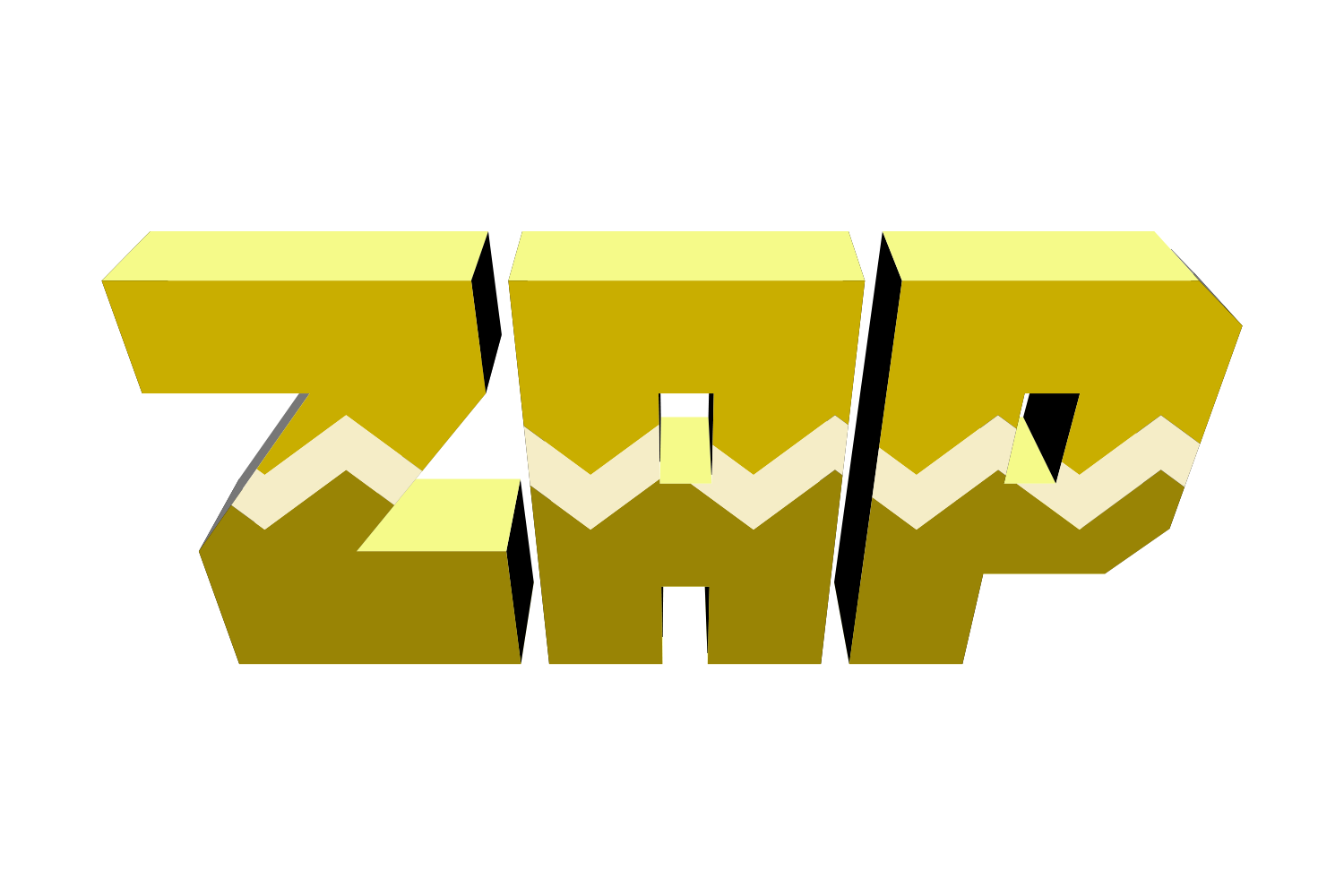
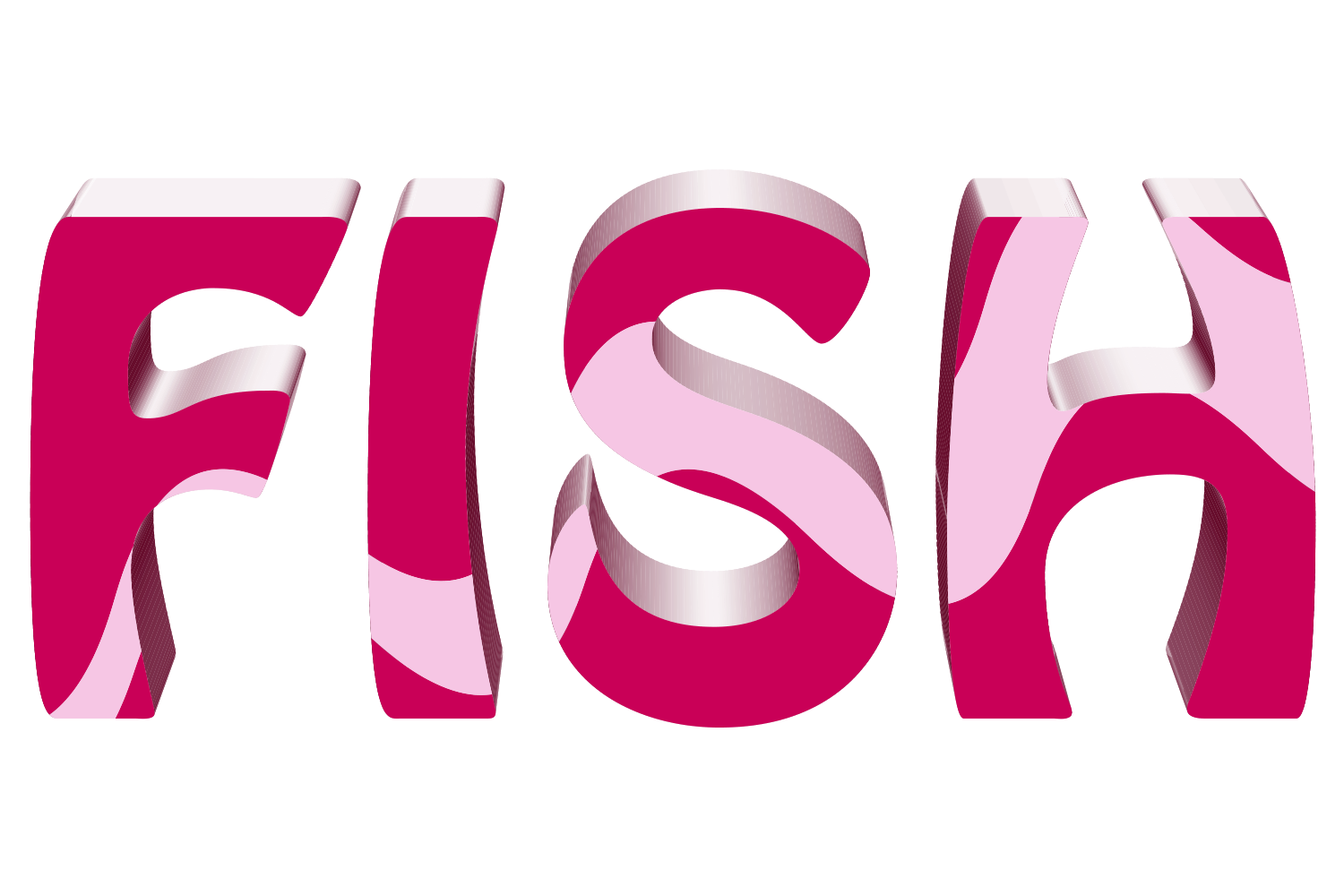
- 3D3D text
- Strokesoutlines and bands
- Split Facesplit and sliced type
- Glitchglitch
- Party!per-letter chaos
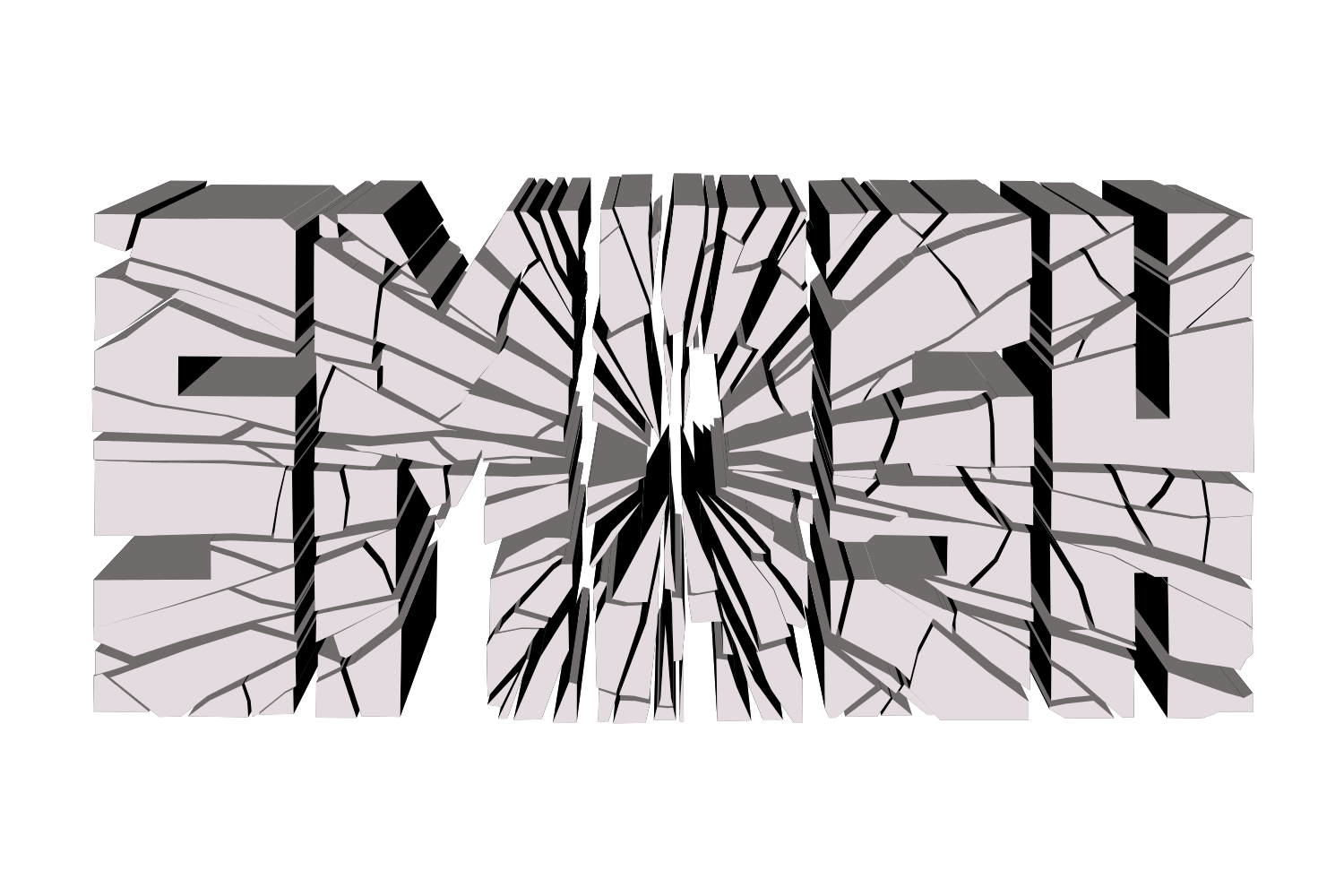
- Crackcracked and shattered type
- Bevelbevels
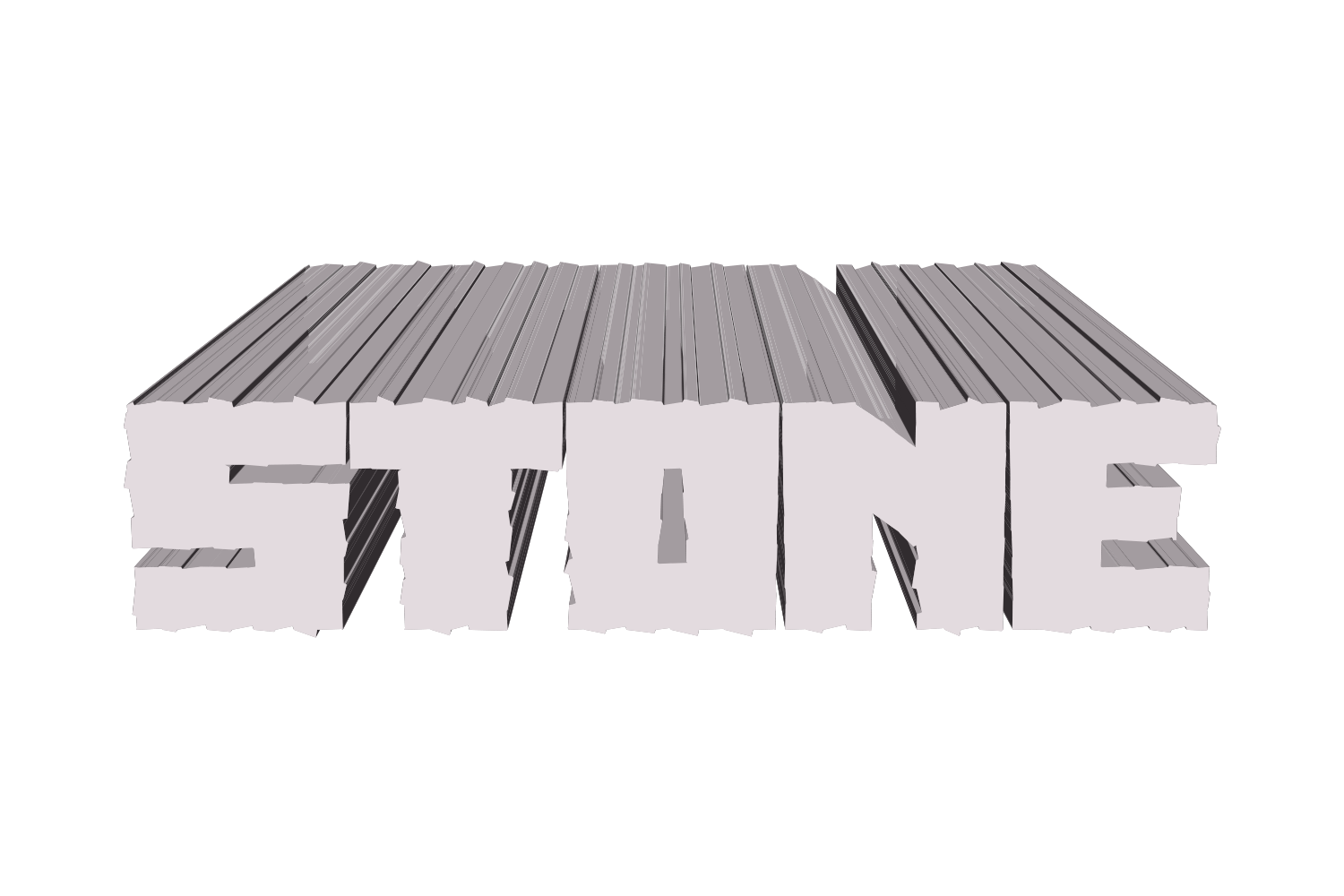
- Pattern Slicegrooves and stripes
- Swishswooshes
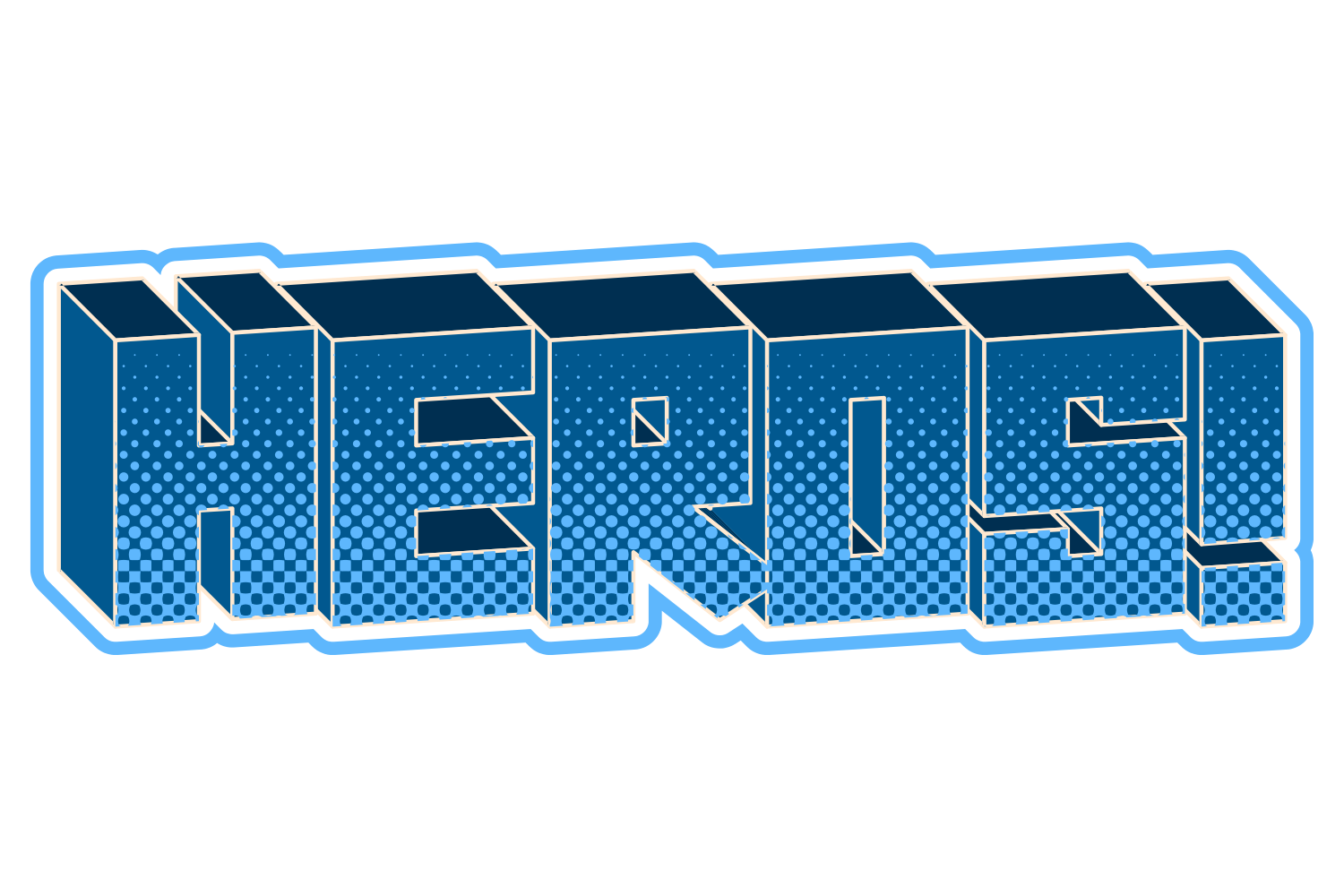
- Halftone Effectshalftone fills
- Highlightshine
- Shadowshadows
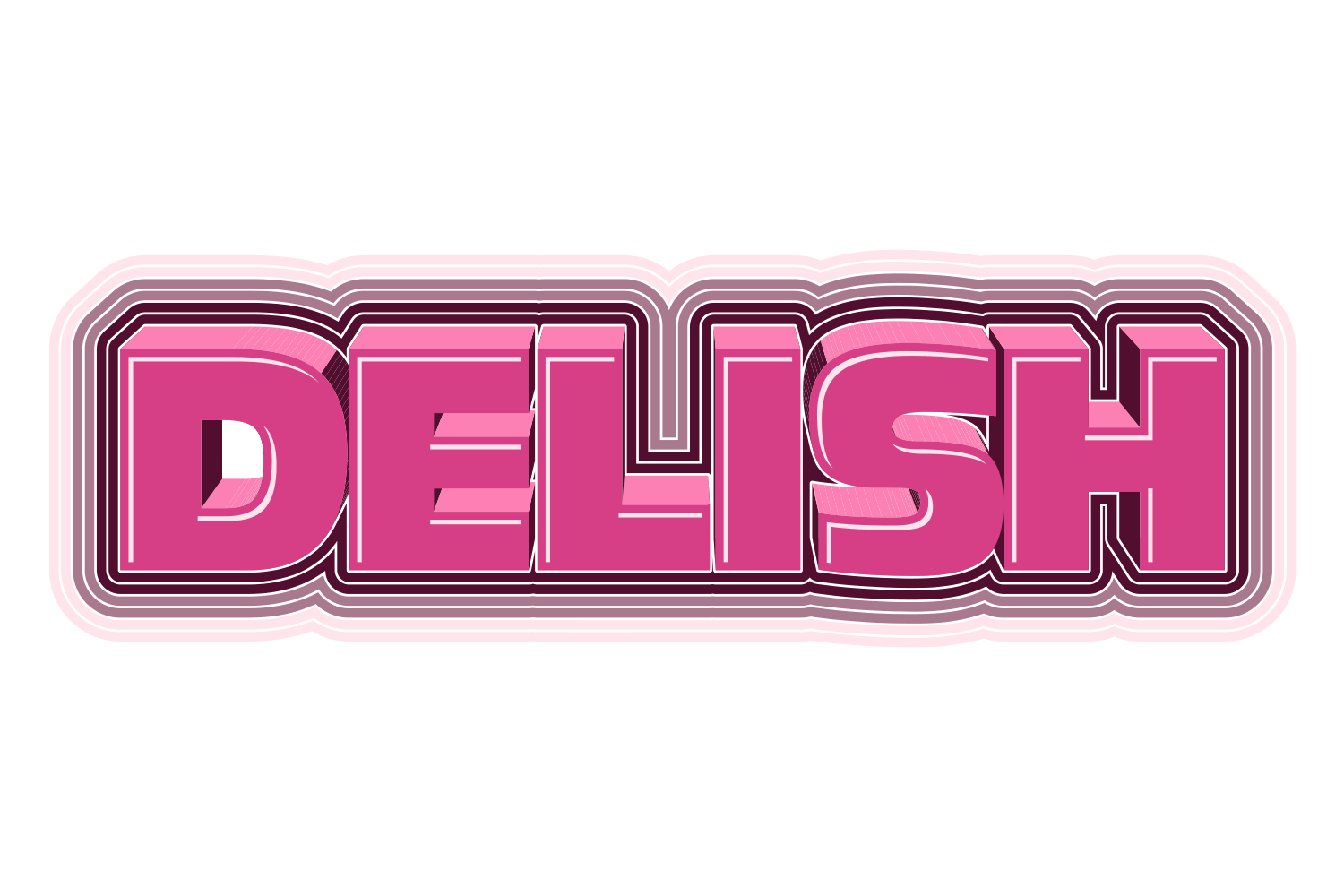
- Stickersticker borders
- Ribbon Bannerribbon banners
- Shapetype warped into a container shape
Common questions
Do text effects slow Illustrator down?
Heavy live effects on long text can. Apply them to headlines, and expand appearance only when you are done.